Finding a run from the Runs view
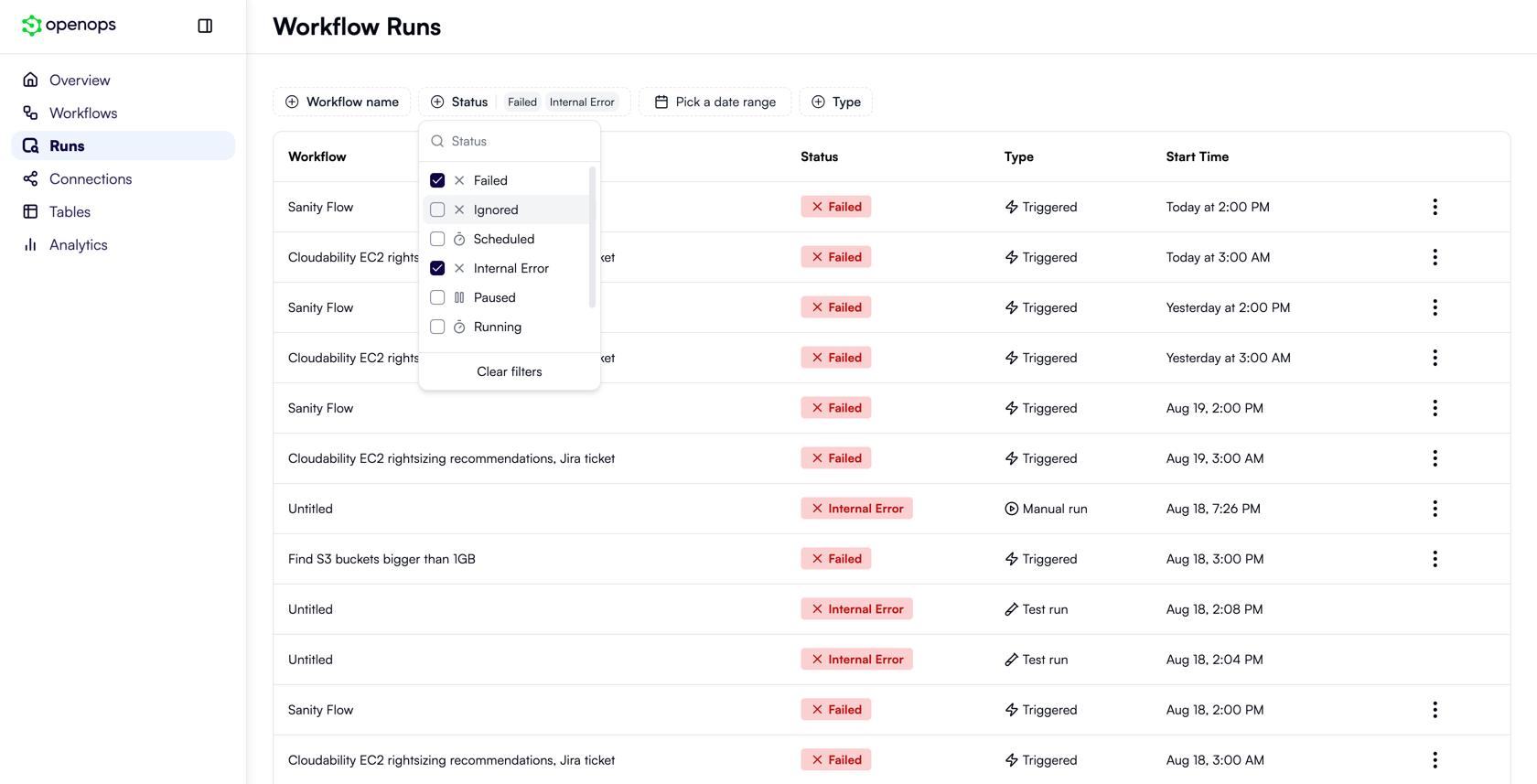
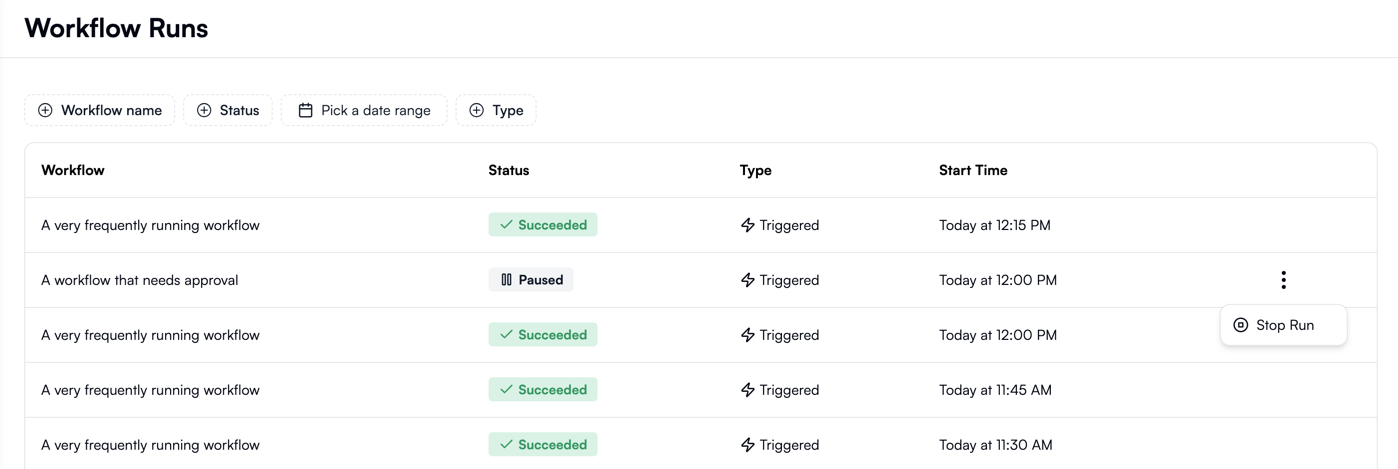
Click Runs in the OpenOps main menu. This opens the list of all runs across all your workflows, with the most recent runs shown first: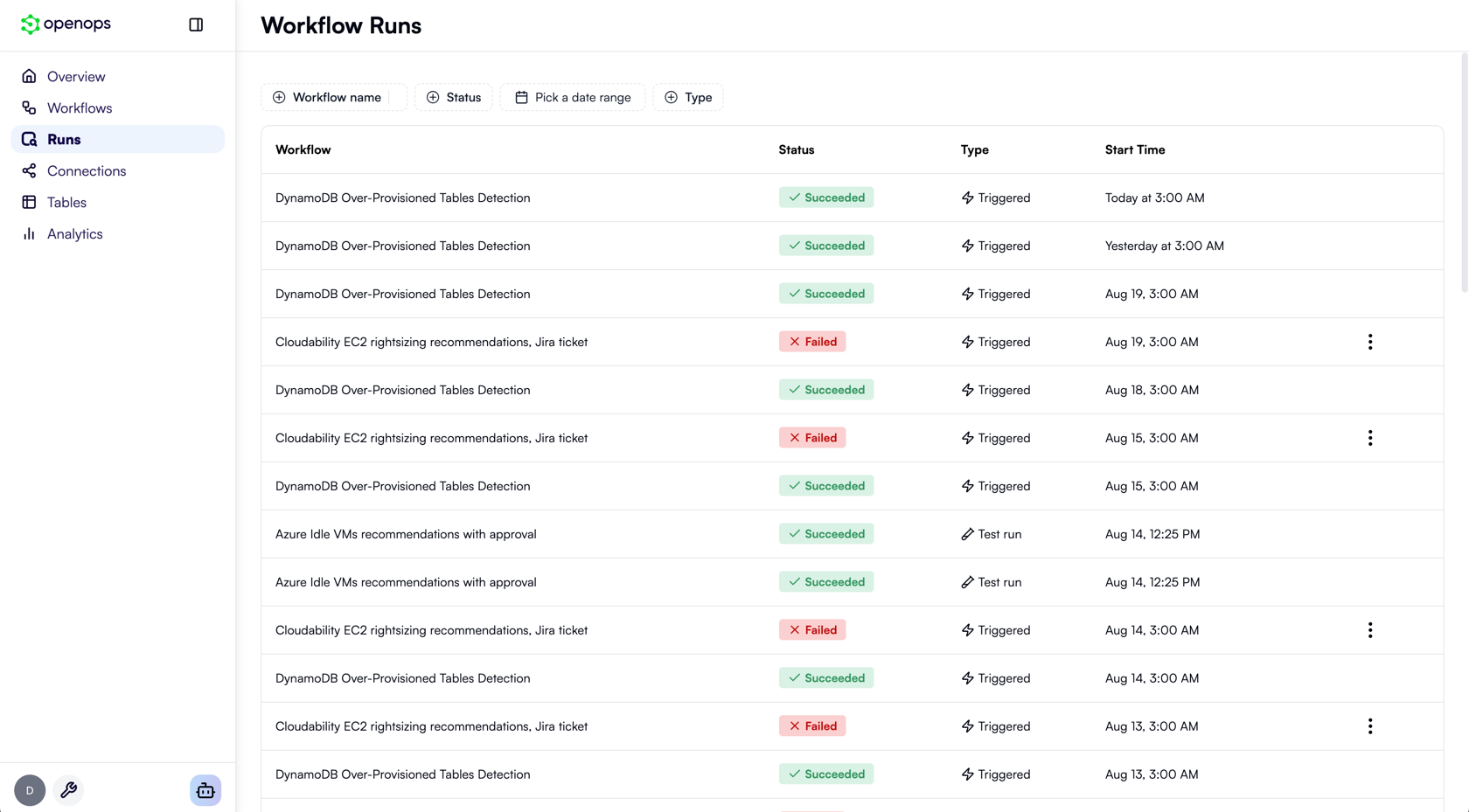
Finding a run from the workflow editor
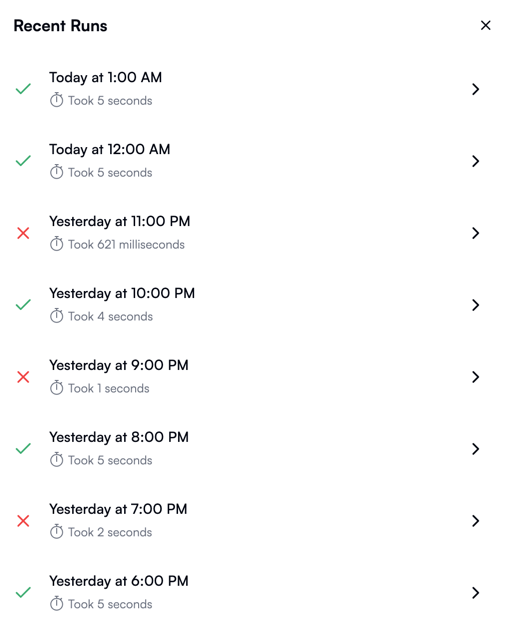
If the workflow you want to investigate is already open in the workflow editor, click Run logs in the top menu:
Investigating in the Run Details view
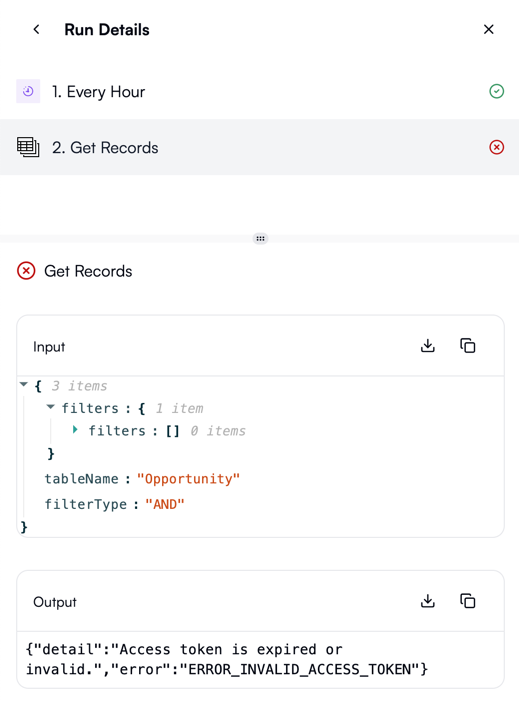
In the Run Details pane, each workflow step will display a ✅ or a ❌ to indicate its execution status. Click on a failed step to see its inputs and outputs. Explore the outputs to view the error message: