- Condition splits the workflow into exactly two branches.
- Split splits the workflow into multiple branches.
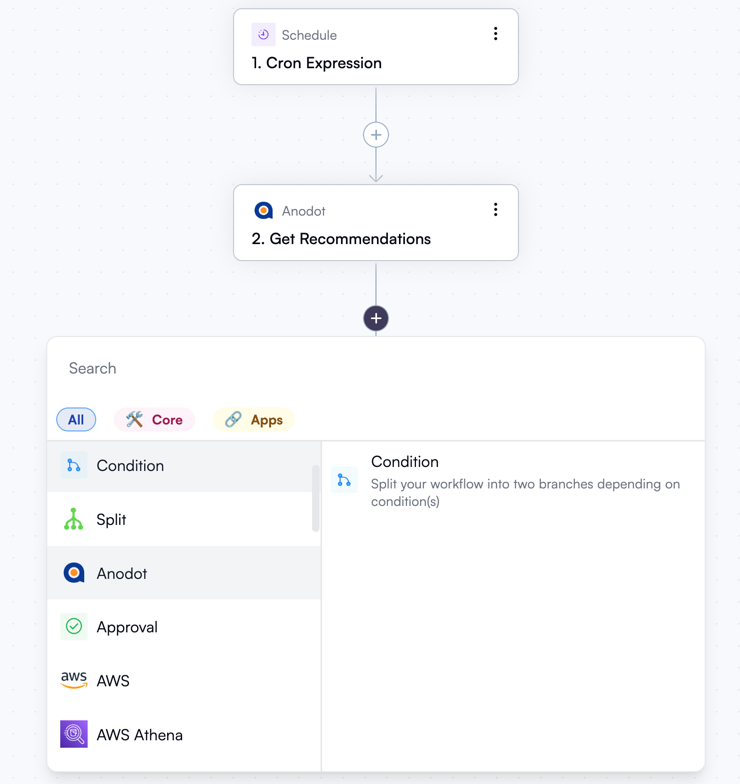
Condition
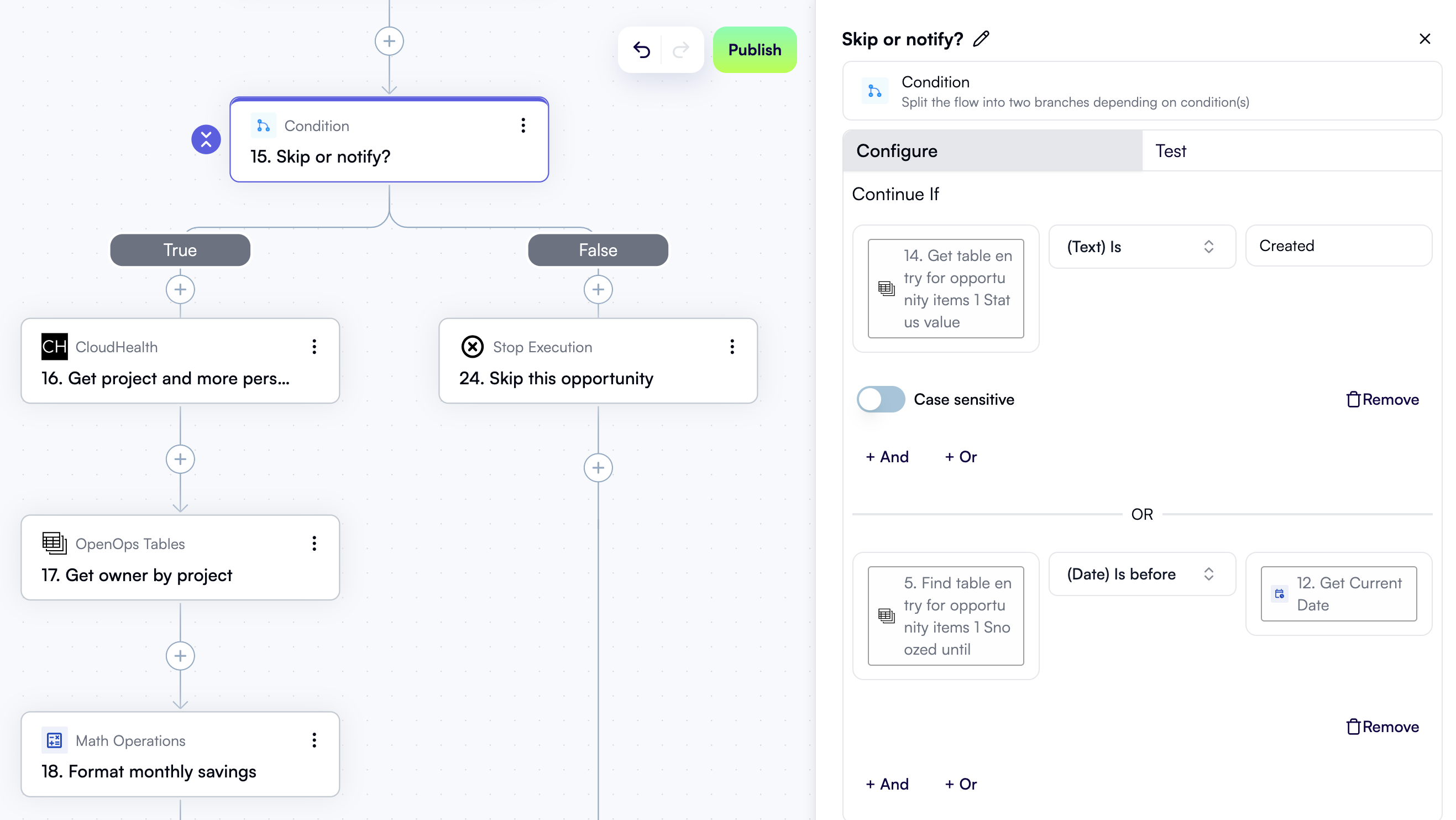
The Condition action splits the workflow into exactly two branches. One is executed if one or multiple conditions that you specify are satisfied, and the other is executed otherwise. Think of this as the equivalent of anif statement in programming.
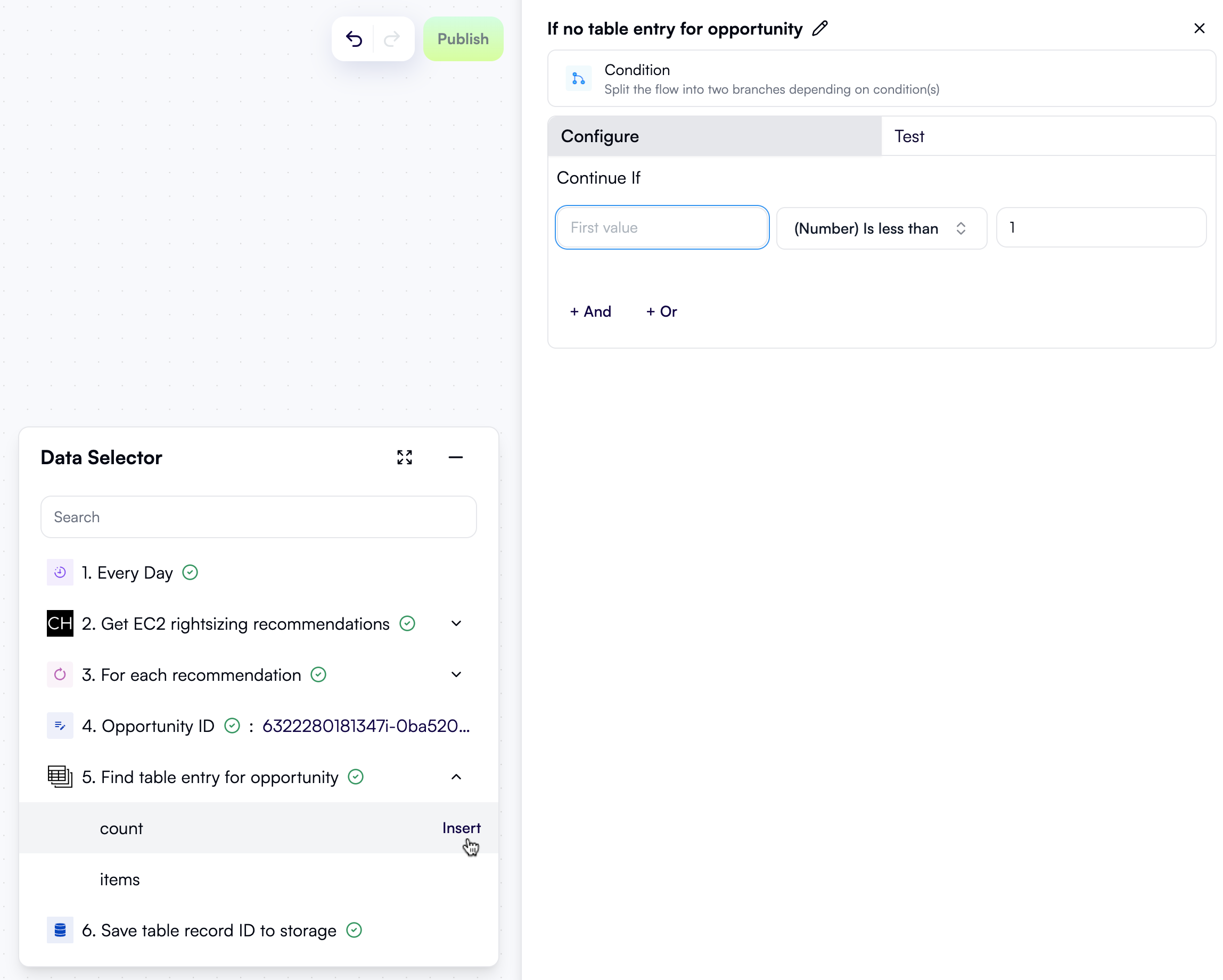
If you choose the Condition action, the properties pane on the right lets you define the condition. By default, there’s only one condition, but you can combine multiple conditions with logical conjunction (click And) or disjunction (click Or).
Every condition contains one or two data fields. Clicking a data field opens the Data Selector view, allowing you to select output from any of your prior actions:
Split
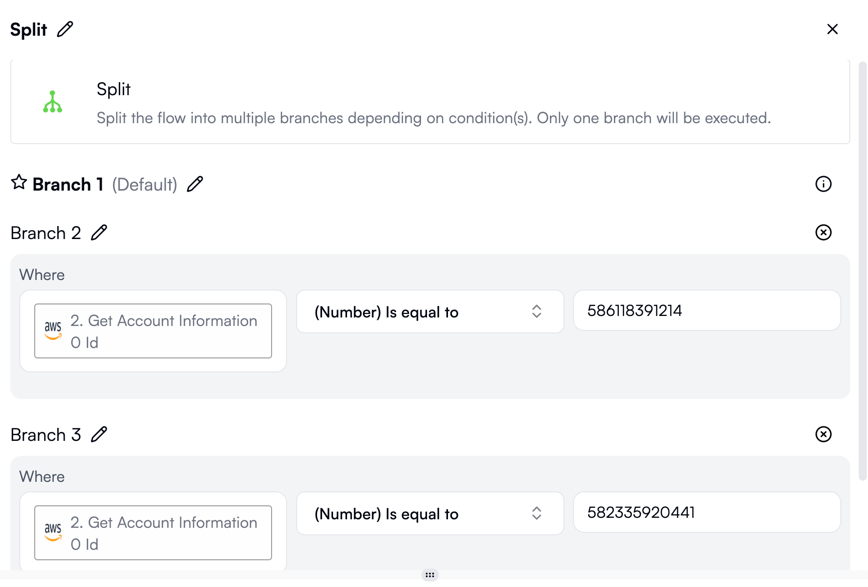
The Split action splits the workflow into multiple branches. Each branch executes if its specific condition is met. An extra branch, called the default branch, executes if none of the conditions specified for other branches is satisfied. Every condition should be unique: if conditions in multiple branches are satisfied, this results in a workflow failure. Think of this action as the equivalent of aswitch statement in programming.
Operators
When you define conditions using the Condition or Split actions, you need to specify what operation to apply to the value(s) you supply. The combo box alongside the data fields lets you do just that: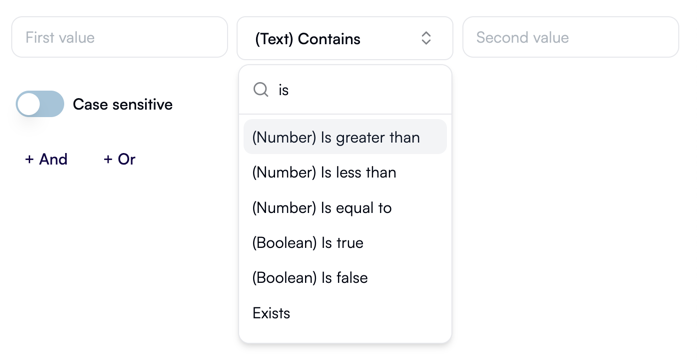
All text operators provide a setting to toggle case sensitivity. All other operators come without additional settings.
Exploring conditional branches in large workflows
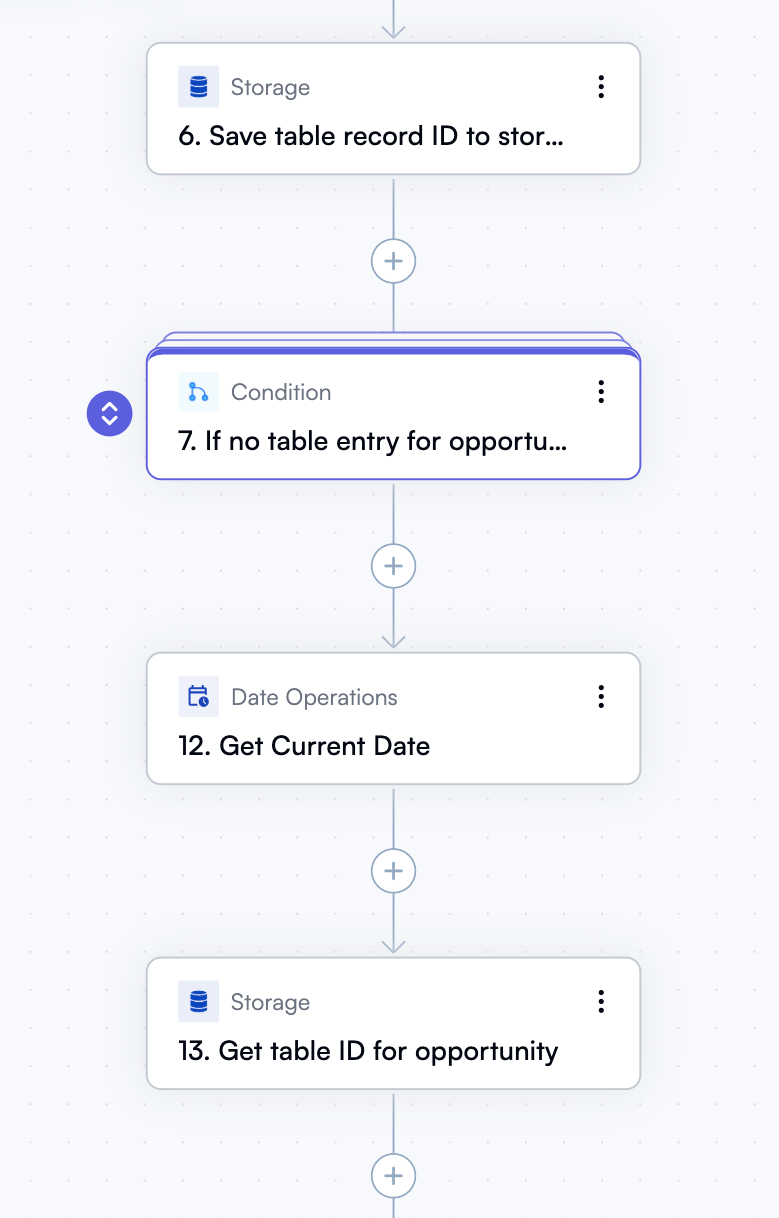
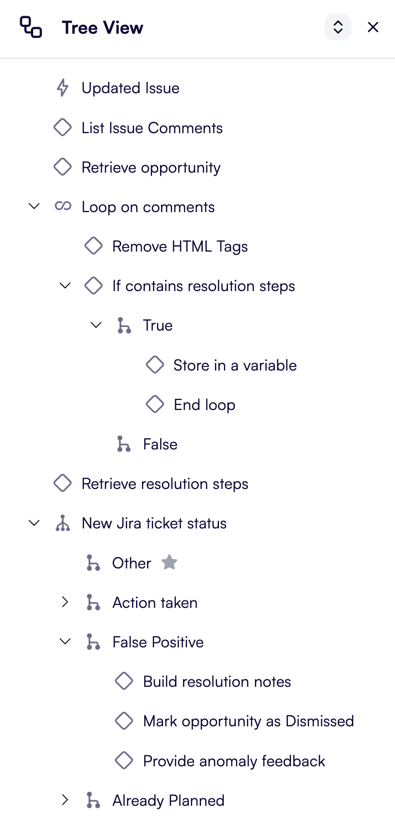
If you’re working with a large workflow that has many conditional branches and are having trouble navigating between them, consider collapsing steps you don’t need to focus on right now, or use the Tree view pane. To collapse a condition, split, or loop step, click the collapse icon to the left of the node. A collapsed node can be expanded by clicking the icon again: