> ## Documentation Index
> Fetch the complete documentation index at: https://openops-ecb4f397-mintlify-helm-chart-documentation-30057.mintlify.site/llms.txt
> Use this file to discover all available pages before exploring further.
# Workflow Version History
> How to track and manage workflow versions
When you create a new workflow or start editing an existing one, you're working with a draft. For draft editing, there are **Undo** and **Redo** buttons in the top menu of the workflow editor:
 Use **Undo** and **Redo** to cancel or repeat the creation of workflow steps. Note that operations more granular than step creation, such as modifying the properties of an action, do not create a new item in the undo stack.
Every time you publish a workflow, OpenOps records the published version so you can view or restore it later. When a workflow is open in the workflow editor, you can click **Version History** in the drop-down menu:
Use **Undo** and **Redo** to cancel or repeat the creation of workflow steps. Note that operations more granular than step creation, such as modifying the properties of an action, do not create a new item in the undo stack.
Every time you publish a workflow, OpenOps records the published version so you can view or restore it later. When a workflow is open in the workflow editor, you can click **Version History** in the drop-down menu:
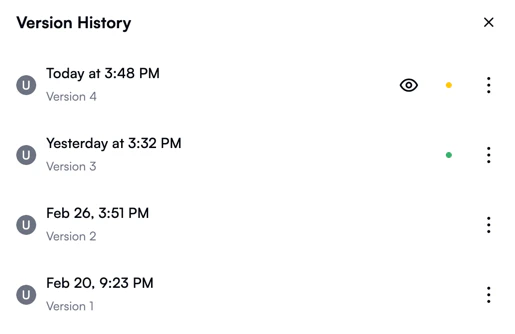
 This opens the **Version History** pane to the left of the editor:
 The version that is currently published is marked with a green dot.
The eye icon marks the version that you're currently viewing. If you click the three-dot menu to the right of a version, you can choose to view that version or use it as a starting point to draft a new version:
The version that is currently published is marked with a green dot.
The eye icon marks the version that you're currently viewing. If you click the three-dot menu to the right of a version, you can choose to view that version or use it as a starting point to draft a new version:
 Reverting to an earlier version is especially useful if the latest published version of a workflow has proven to be problematic, and you'd like to revert to an older version that works. In this case, select **Use as draft** for a previous version known to be functional, then click **Publish**, and the working version is now back in action.
Note that whenever you start editing your workflow, your current draft is also represented in **Version History** by a record with a yellow dot next to it:
Reverting to an earlier version is especially useful if the latest published version of a workflow has proven to be problematic, and you'd like to revert to an older version that works. In this case, select **Use as draft** for a previous version known to be functional, then click **Publish**, and the working version is now back in action.
Note that whenever you start editing your workflow, your current draft is also represented in **Version History** by a record with a yellow dot next to it: