> ## Documentation Index
> Fetch the complete documentation index at: https://openops-ecb4f397-mintlify-helm-chart-documentation-30057.mintlify.site/llms.txt
> Use this file to discover all available pages before exploring further.
# Workflow Templates
> How to create automations from a library of pre-configured workflow templates
OpenOps provides a pre-made library of FinOps best-practice workflows, based on research and input from FinOps leaders across industries and verticals.
The library, referred to as the **Templates catalog**, contains dozens of templates that provide ready-to-use recipes for anomaly management, workload and rate optimization across the following cloud services:
* **Amazon**: CloudFront, CloudWatch, DynamoDB, Elastic Block Store (EBS), Elastic Compute Cloud (EC2), Elastic File System (EFS), Elastic Kubernetes Service (EKS), Elastic Load Balancing (ELB), Lambda, Relational Database Service (RDS), Simple Storage Service (S3), and Virtual Private Cloud (VPC).
* **Azure**: App Service, Application Insights, Container Registry, Cosmos DB, SQL Database, Managed Disks, Elastic Pool, Firewall, SQL Managed Instance, Virtual Network, SQL Server on Azure Virtual Machines (SQL VM), Storage, and Virtual Machines (VM).
* **Google Cloud Platform**: Cloud Logging and Compute Engine.
## Exploring templates
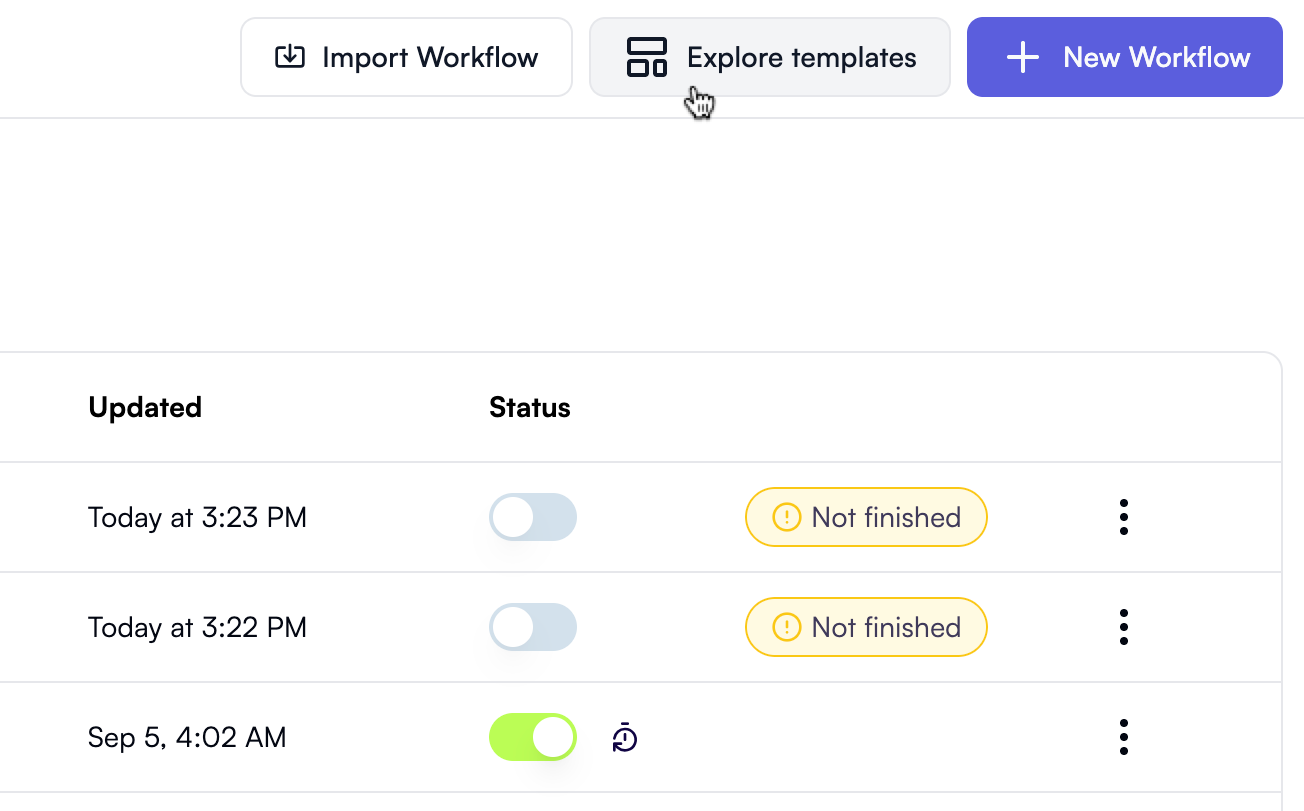
To view the catalog, click **Explore templates** in the top-right menu bar in the **Overview** or **Workflows** section:
 The catalog will open in an overlay:
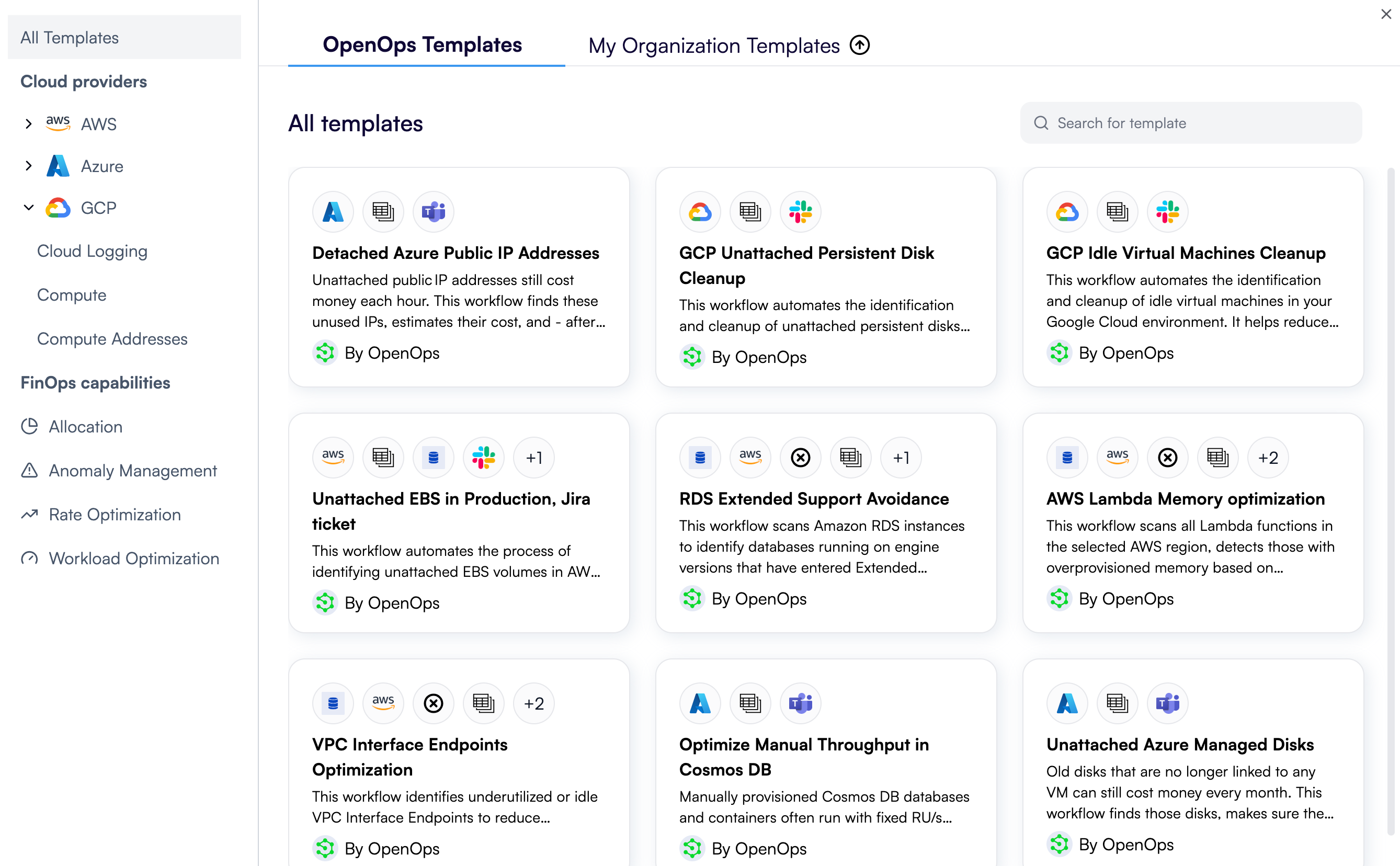
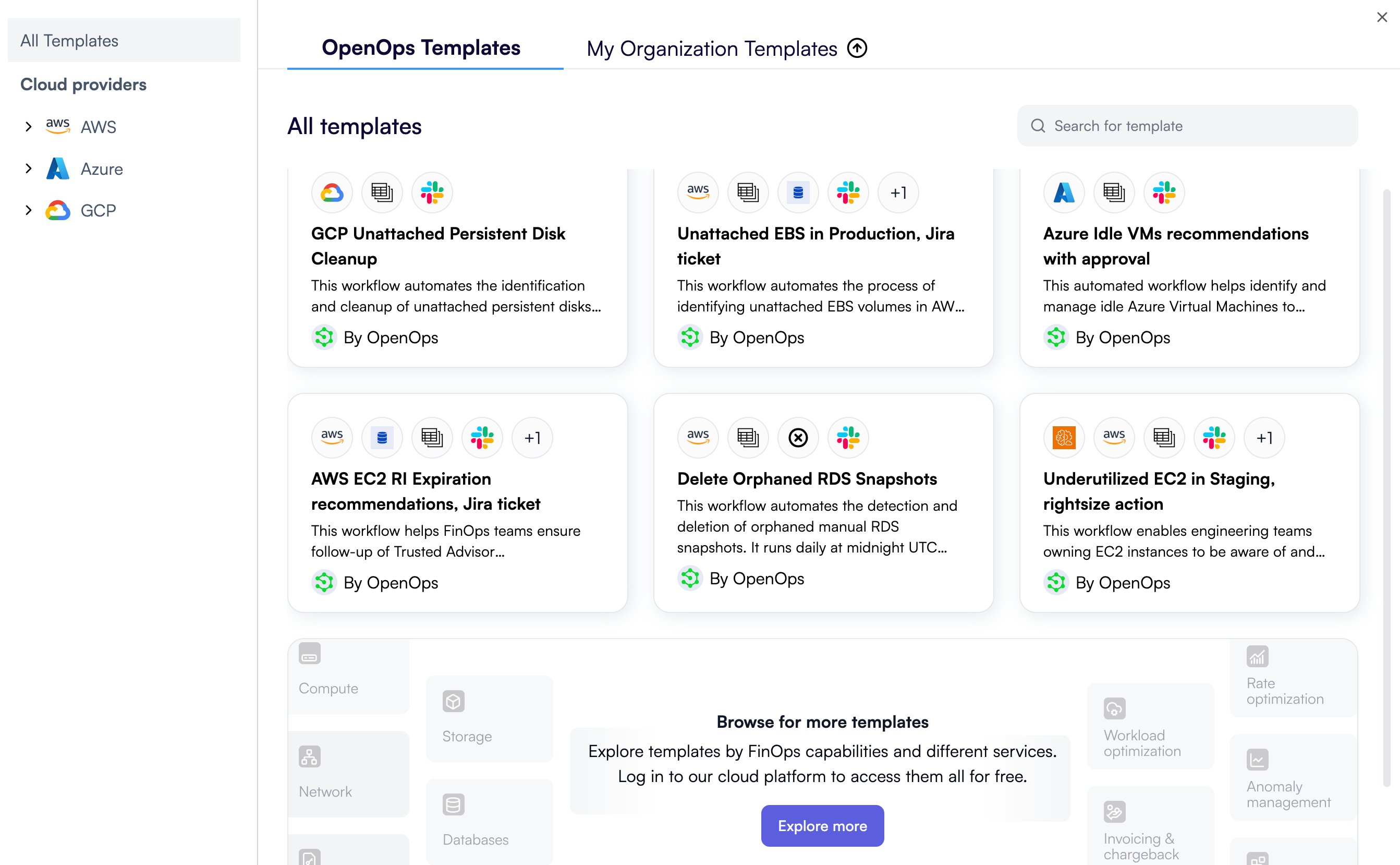 By default, the catalog contains six templates. To view more, click **Explore more** and sign up for a free OpenOps Cloud account. As a result, the **Templates catalog** in your OpenOps installation will be extended to show all available templates:
 You may not be able to connect to OpenOps Cloud and see additional templates if:
* Your browser is configured to block third-party cookies. Allow third-party cookies ([Chrome](https://support.google.com/chrome/answer/95647), [Safari](https://help.apple.com/safari/mac/8.0/en.lproj/sfri11471.html), [Firefox](http://support.mozilla.org/en-US/kb/third-party-cookies-firefox-tracking-protection)) for your OpenOps installation’s URL.
* You're using an OpenOps installation served over HTTP in Safari. Consider enabling HTTPS for your installation by following the instructions for [AWS](/getting-started/deployment/aws-ec2#enabling-tls), [Azure](/getting-started/deployment/azure-vm#enabling-tls), or [GCP](/getting-started/deployment/gcp-vm#enabling-tls) deployments.
## Creating workflows based on templates
When you click a template in the catalog, OpenOps displays its full description, a preview diagram visualizing the workflow steps defined in the template, and the integrations that the template uses:
You may not be able to connect to OpenOps Cloud and see additional templates if:
* Your browser is configured to block third-party cookies. Allow third-party cookies ([Chrome](https://support.google.com/chrome/answer/95647), [Safari](https://help.apple.com/safari/mac/8.0/en.lproj/sfri11471.html), [Firefox](http://support.mozilla.org/en-US/kb/third-party-cookies-firefox-tracking-protection)) for your OpenOps installation’s URL.
* You're using an OpenOps installation served over HTTP in Safari. Consider enabling HTTPS for your installation by following the instructions for [AWS](/getting-started/deployment/aws-ec2#enabling-tls), [Azure](/getting-started/deployment/azure-vm#enabling-tls), or [GCP](/getting-started/deployment/gcp-vm#enabling-tls) deployments.
## Creating workflows based on templates
When you click a template in the catalog, OpenOps displays its full description, a preview diagram visualizing the workflow steps defined in the template, and the integrations that the template uses:
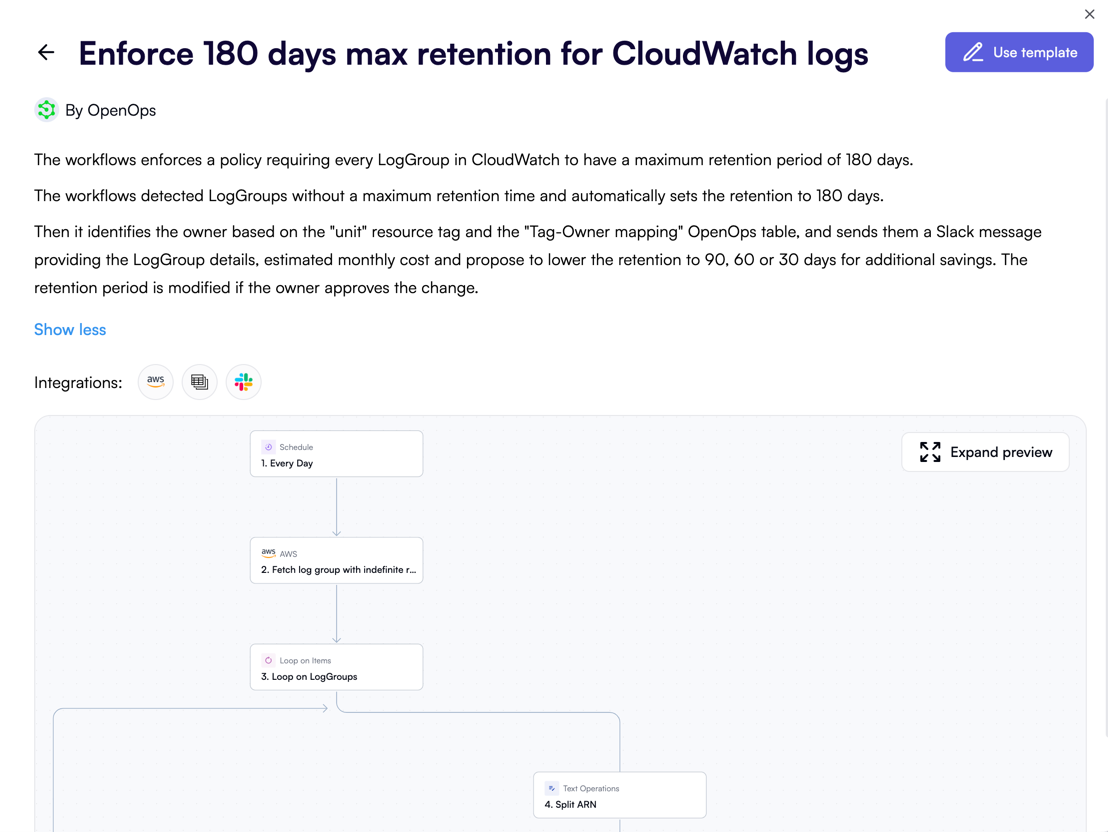 If you want to use the workflow defined in the template, click **Use template** in the top-right corner.
OpenOps will then ask you to specify existing or create new connections to cloud services that are required for the selected template to work:
If you want to use the workflow defined in the template, click **Use template** in the top-right corner.
OpenOps will then ask you to specify existing or create new connections to cloud services that are required for the selected template to work:
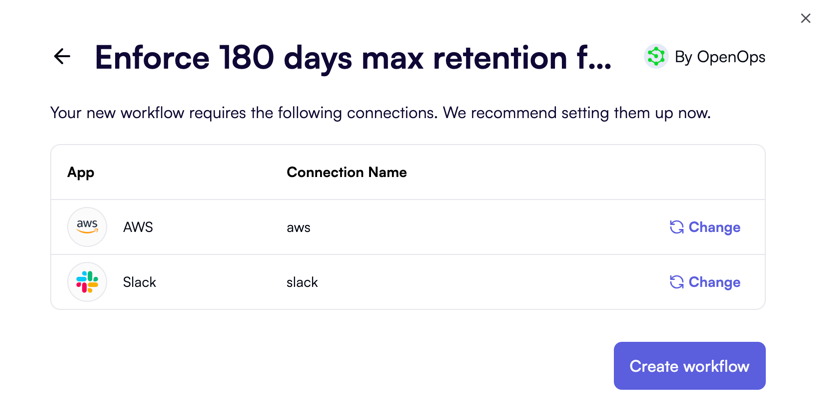 You can set up the required connections now or later. When you click **Create workflow**, your workflow will open in the workflow editor, where you can [customize it to your liking](/workflow-management/building-workflows).