> ## Documentation Index
> Fetch the complete documentation index at: https://openops-ecb4f397-mintlify-helm-chart-documentation-30057.mintlify.site/llms.txt
> Use this file to discover all available pages before exploring further.
# Investigating Workflow Runs
> How to troubleshoot and debug workflow runs
If a workflow didn't execute the way you expected it to, you can investigate what went wrong by viewing the history of workflow runs. You can do this [from the **Runs** view](#finding-a-run-from-the-runs-view) or directly [from the workflow editor](#finding-a-run-from-the-workflow-editor).
## Finding a run from the Runs view
Click **Runs** in the OpenOps main menu.
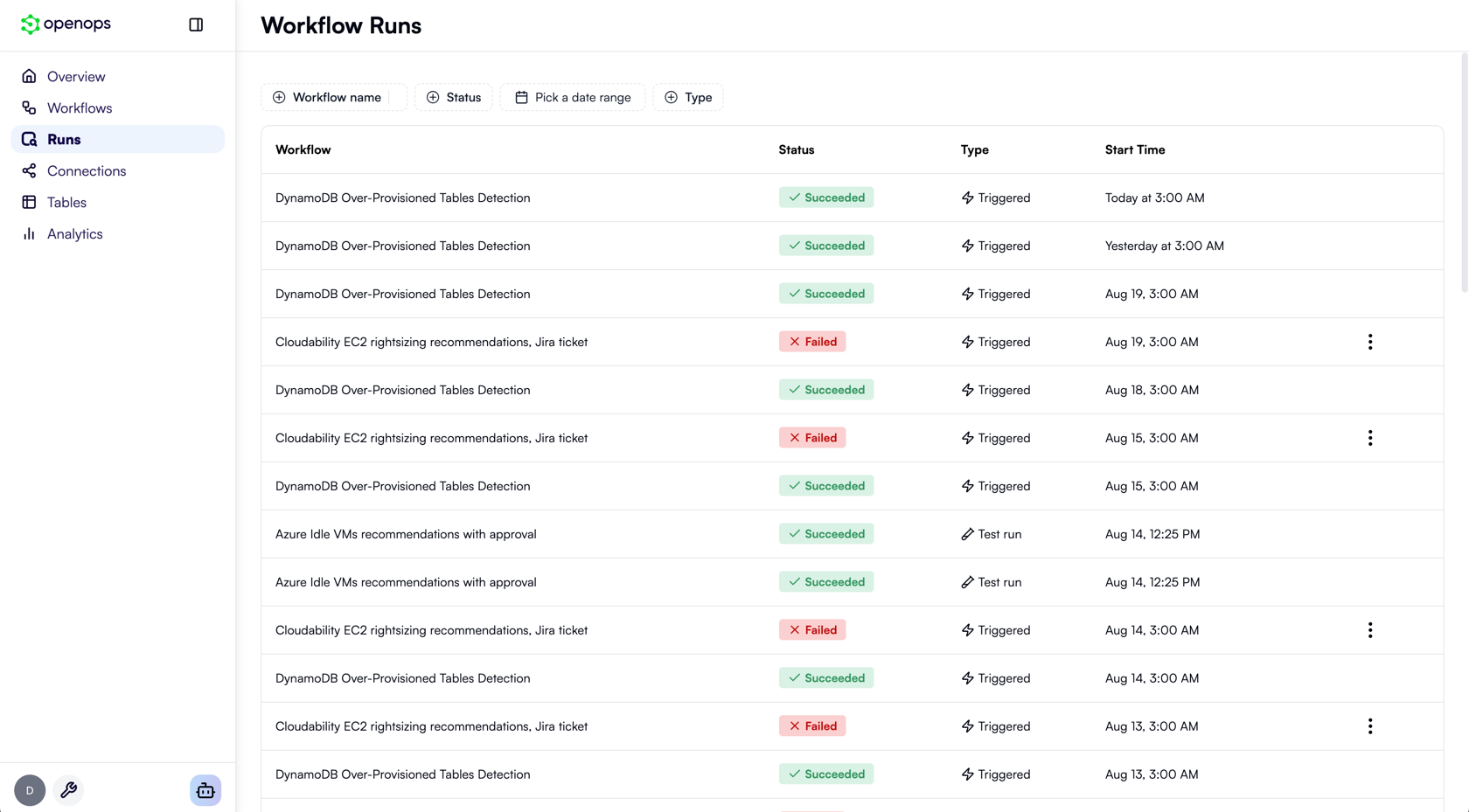
This opens the list of all runs across all your workflows, with the most recent runs shown first:
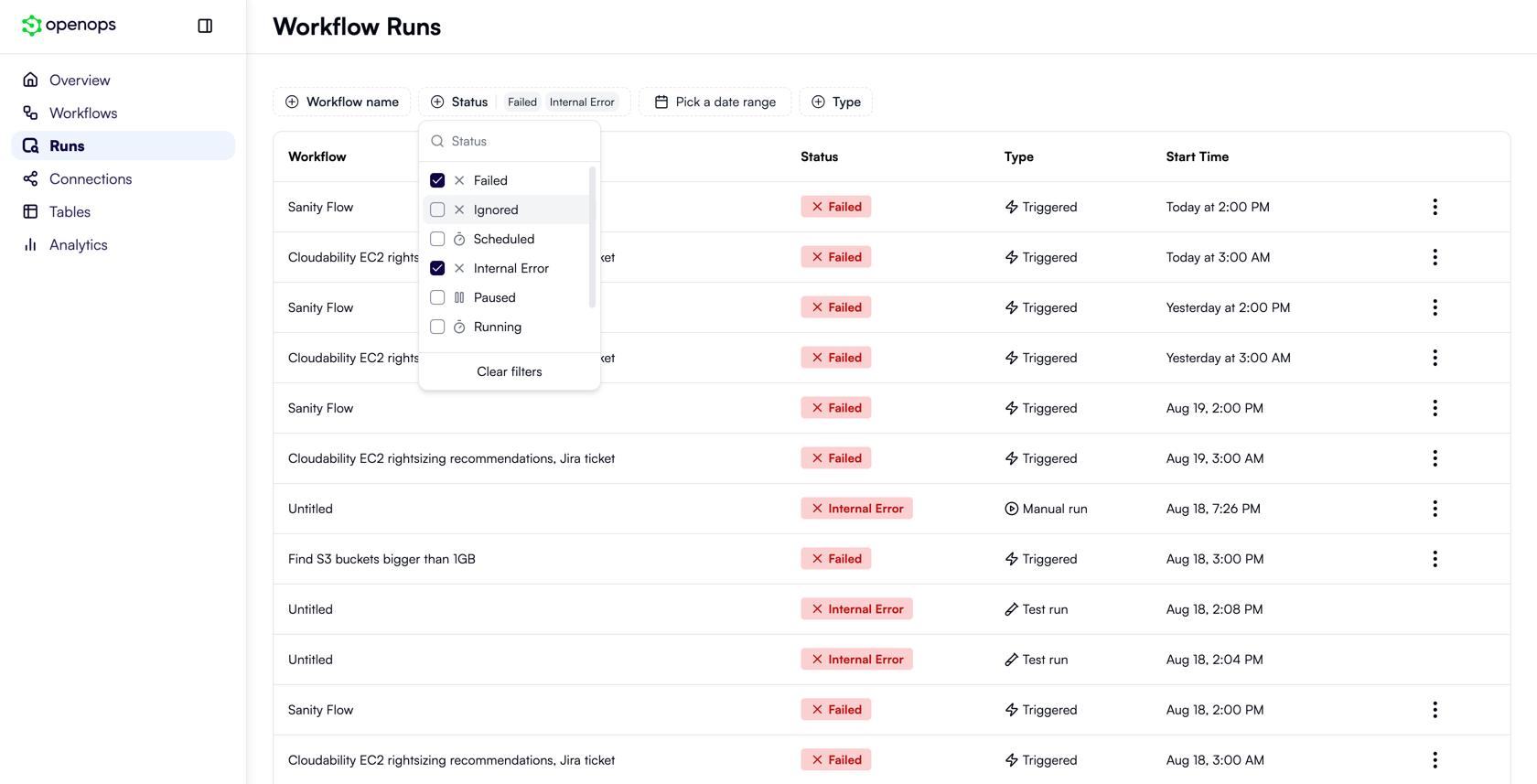
 You can filter the list by workflow name, run status (succeeded, failed, paused, timeout, etc.), type (triggered, manual run, test run), or a date range:
 When you've found a run you want to investigate, click on it. This will open the workflow editor in a view-only mode.
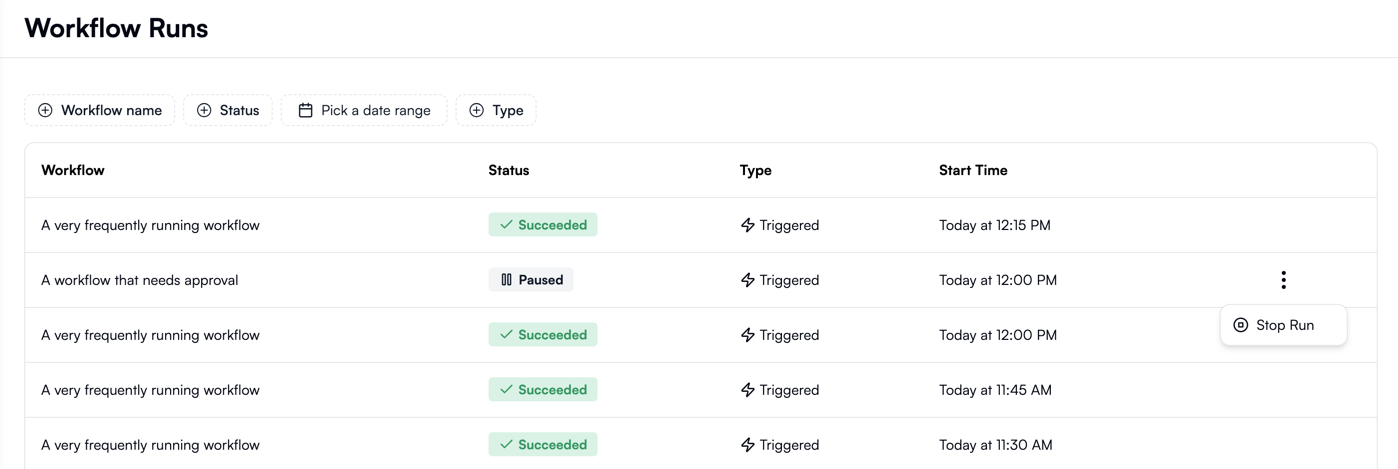
Alternatively, if a run is taking longer than expected or is stuck in a paused state, you can abort it by clicking the three-dot menu on the right and selecting **Stop Run**:
When you've found a run you want to investigate, click on it. This will open the workflow editor in a view-only mode.
Alternatively, if a run is taking longer than expected or is stuck in a paused state, you can abort it by clicking the three-dot menu on the right and selecting **Stop Run**:
 ## Finding a run from the workflow editor
If the workflow you want to investigate is already open in the workflow editor, click **Run logs** in the top menu:
## Finding a run from the workflow editor
If the workflow you want to investigate is already open in the workflow editor, click **Run logs** in the top menu:
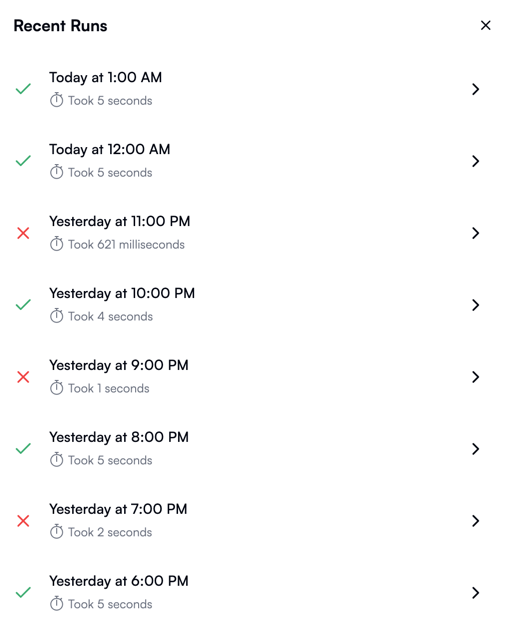
 In the **Recent Runs** pane that opens on the left, click a run that you want to investigate. Failed runs are marked with the ❌ icon:
 This will open the selected run in the **Run Details** pane.
## Investigating in the Run Details view
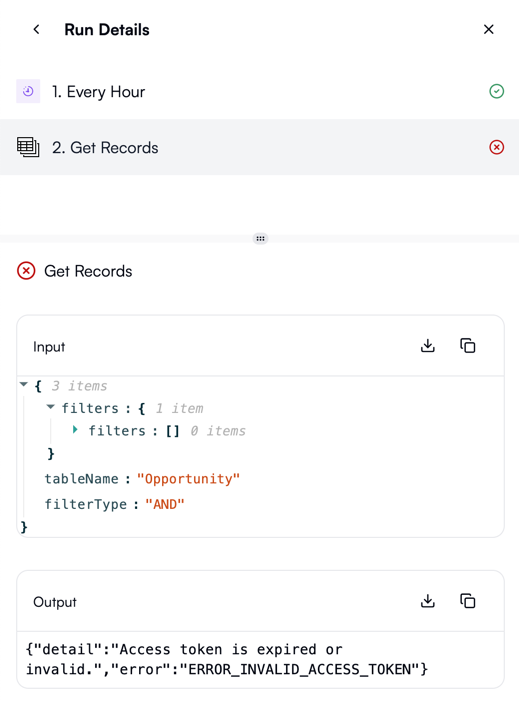
In the **Run Details** pane, each workflow step will display a ✅ or a ❌ to indicate its execution status.
Click on a failed step to see its inputs and outputs. Explore the outputs to view the error message:
This will open the selected run in the **Run Details** pane.
## Investigating in the Run Details view
In the **Run Details** pane, each workflow step will display a ✅ or a ❌ to indicate its execution status.
Click on a failed step to see its inputs and outputs. Explore the outputs to view the error message:
 To update the workflow to address the error, click **Edit** in the top-right corner of the workflow editor. This switches the editor from view-only mode, enabling you to select the problematic step and modify its properties.