> ## Documentation Index
> Fetch the complete documentation index at: https://openops-ecb4f397-mintlify-helm-chart-documentation-30057.mintlify.site/llms.txt
> Use this file to discover all available pages before exploring further.
# Human-in-the-Loop
> How to request human approval and intervention in your workflows
Some workflows can run safely in unattended mode. Others, such as resource deletions, are more impactful and may require review by stakeholders before proceeding. To address this, OpenOps offers two Human-in-the-Loop mechanisms: [approvals](#requesting-approvals) and [notifications](#sending-notifications).
For example, you can create a workflow that flags idle RDS instances for review, prompting human approval before any scaling down or termination actions are taken.
## Requesting approvals
You can automate sending your stakeholders messages with actionable links or buttons and make your workflow stop executing until the receiver clicks one of these links or buttons. Depending on their choice, you can split the subsequent steps of your workflow into conditional branches.
OpenOps offers a dedicated approval request feature for Slack, as well as a more generic approval mechanism that you can use with other communication channels.
### On Slack
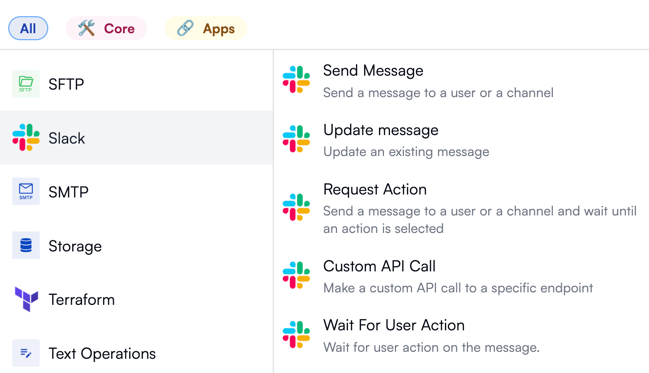
OpenOps provides several Slack-related actions:
 #### With "Request Action"
One of Slack-related actions, **Request Action**, is the most straightforward way to request approval. It lets you build a Slack message with standard action buttons, send it to a chat or a public channel, and wait until the recipient clicks one of these buttons, signifying their decision:
#### With "Request Action"
One of Slack-related actions, **Request Action**, is the most straightforward way to request approval. It lets you build a Slack message with standard action buttons, send it to a chat or a public channel, and wait until the recipient clicks one of these buttons, signifying their decision:
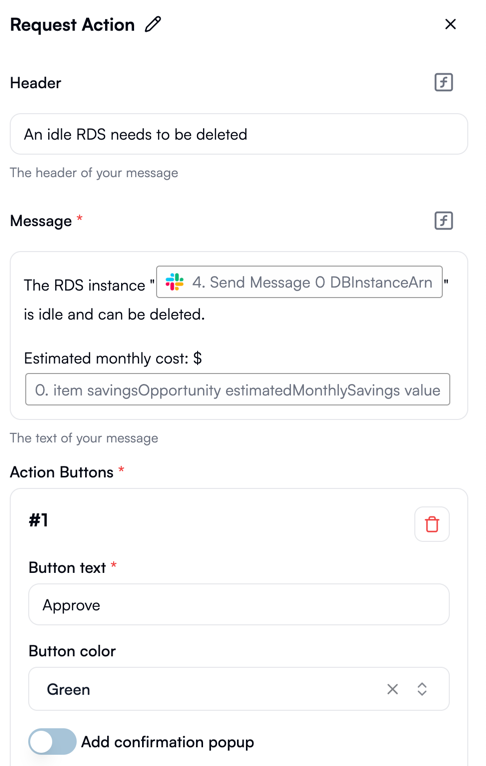 When this action fires, the Slack user receives a message that you've defined in the action's properties. The message may look like this:
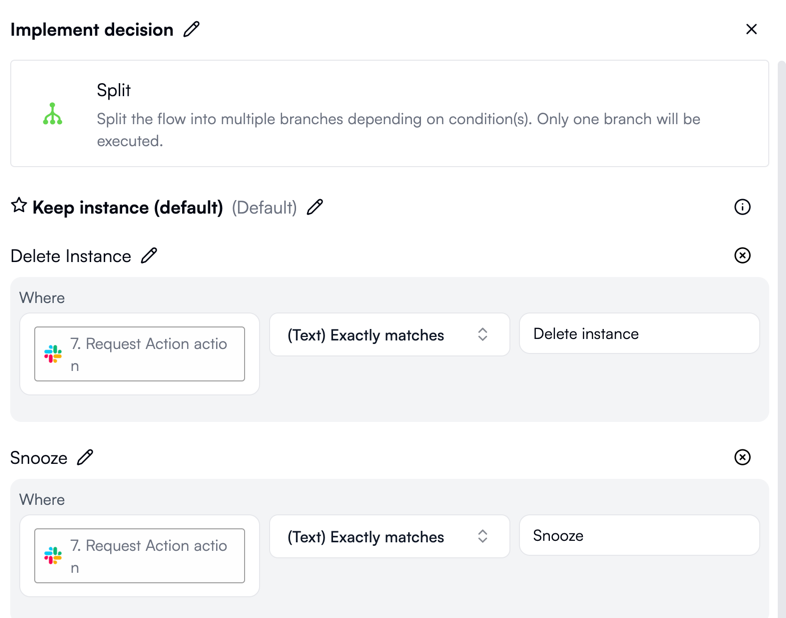
 As soon as the user clicks one of the buttons, your **Request Action** step receives this as the output. You can then create a [conditional branch](/workflow-management/conditional-branching/) with the **Split** action and implement distinct steps depending on which button the user clicked:
 #### With "Send Message" and "Wait For User Action"
If you want to build approval requests with more customization options, you can use the **Send Message** action in the **Slack** group instead of **Request Action**.
The upside of **Send Message** is that it enables you to create approval requests using Slack's rich [Block Kit](https://api.slack.com/block-kit) UI framework.
However, **Send Message** doesn't wait for a reply from the recipient. Instead, use the **Wait For User Action** action and pass the output of **Send Message** to it. This allows the workflow to capture button clicks in the approval request. Once a button click associated with a decision is captured, you can then use the **Split** action to add workflow steps depending on the decision.
### Elsewhere
To request approvals through a communication channel other than Slack, use the **Approval** group of actions:
#### With "Send Message" and "Wait For User Action"
If you want to build approval requests with more customization options, you can use the **Send Message** action in the **Slack** group instead of **Request Action**.
The upside of **Send Message** is that it enables you to create approval requests using Slack's rich [Block Kit](https://api.slack.com/block-kit) UI framework.
However, **Send Message** doesn't wait for a reply from the recipient. Instead, use the **Wait For User Action** action and pass the output of **Send Message** to it. This allows the workflow to capture button clicks in the approval request. Once a button click associated with a decision is captured, you can then use the **Split** action to add workflow steps depending on the decision.
### Elsewhere
To request approvals through a communication channel other than Slack, use the **Approval** group of actions:
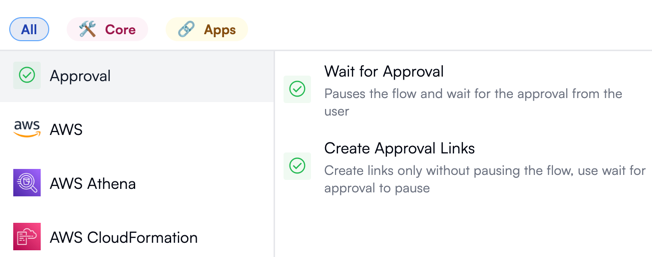 In this case, here's how you can create the approval part of your workflow:
1. Add the **Create Approval Links** action from the **Approval** group. This action generates two links: one for approval and the other for disapproval.
2. Add an action to message a stakeholder the two links. You can use **Send Email** under **SMTP** or one of the actions in the **Microsoft Teams** group.
3. Add the **Wait For Approval** action from the **Approval** group. Once the stakeholder clicks a link, this action updates the approval status accordingly.
4. Add the **Condition** action to take steps in case of approval or disapproval.
## Sending notifications
Besides approvals, you can also send notifications about completed workflows or steps. Some of the actions that enable sending notifications include:
* Actions in the **Slack** group:
* **Send Message** to send a direct message or a message to a public Slack channel.
* **Update Message** to update a message previously sent to a public Slack channel.
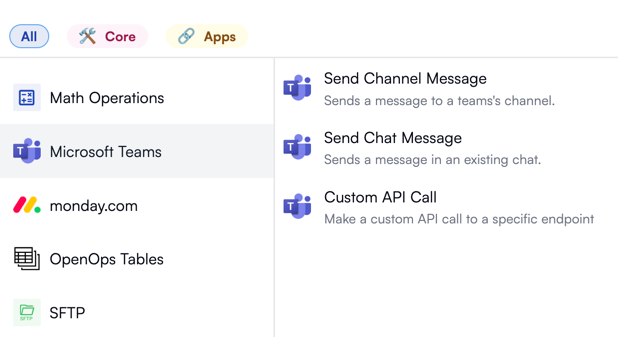
* **Send Channel Message** and **Send Chat Message** under **Microsoft Teams**:
In this case, here's how you can create the approval part of your workflow:
1. Add the **Create Approval Links** action from the **Approval** group. This action generates two links: one for approval and the other for disapproval.
2. Add an action to message a stakeholder the two links. You can use **Send Email** under **SMTP** or one of the actions in the **Microsoft Teams** group.
3. Add the **Wait For Approval** action from the **Approval** group. Once the stakeholder clicks a link, this action updates the approval status accordingly.
4. Add the **Condition** action to take steps in case of approval or disapproval.
## Sending notifications
Besides approvals, you can also send notifications about completed workflows or steps. Some of the actions that enable sending notifications include:
* Actions in the **Slack** group:
* **Send Message** to send a direct message or a message to a public Slack channel.
* **Update Message** to update a message previously sent to a public Slack channel.
* **Send Channel Message** and **Send Chat Message** under **Microsoft Teams**:
 * Actions in the **Jira Cloud** group, such as **Change Issue Status** and **Add Issue Comment**.