> ## Documentation Index
> Fetch the complete documentation index at: https://openops-ecb4f397-mintlify-helm-chart-documentation-30057.mintlify.site/llms.txt
> Use this file to discover all available pages before exploring further.
# Conditional Branching
> How to create decision paths in your workflows
Depending on data received in previous steps of your workflow, you may want to decide how to proceed further. Two actions help you split your workflow based on conditions:
* [**Condition**](#condition) splits the workflow into exactly two branches.
* [**Split**](#split) splits the workflow into multiple branches.
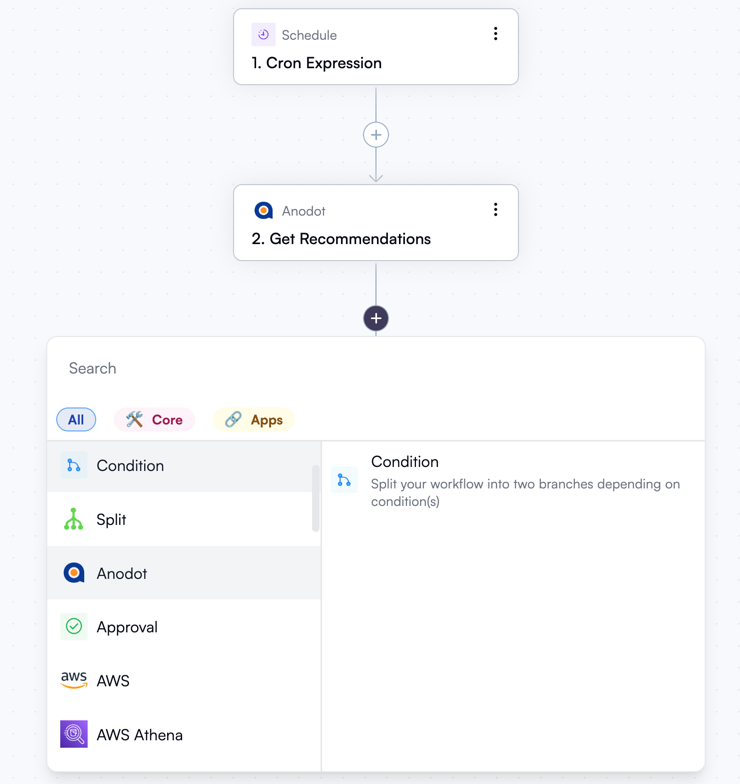
You can add either of these just like you add any other action, using the **+** button in the workflow editor:
 ## Condition
The **Condition** action splits the workflow into exactly two branches. One is executed if one or multiple conditions that you specify are satisfied, and the other is executed otherwise.
Think of this as the equivalent of an `if` statement in programming.
If you choose the **Condition** action, the properties pane on the right lets you define the condition. By default, there's only one condition, but you can combine multiple conditions with logical conjunction (click **And**) or disjunction (click **Or**).
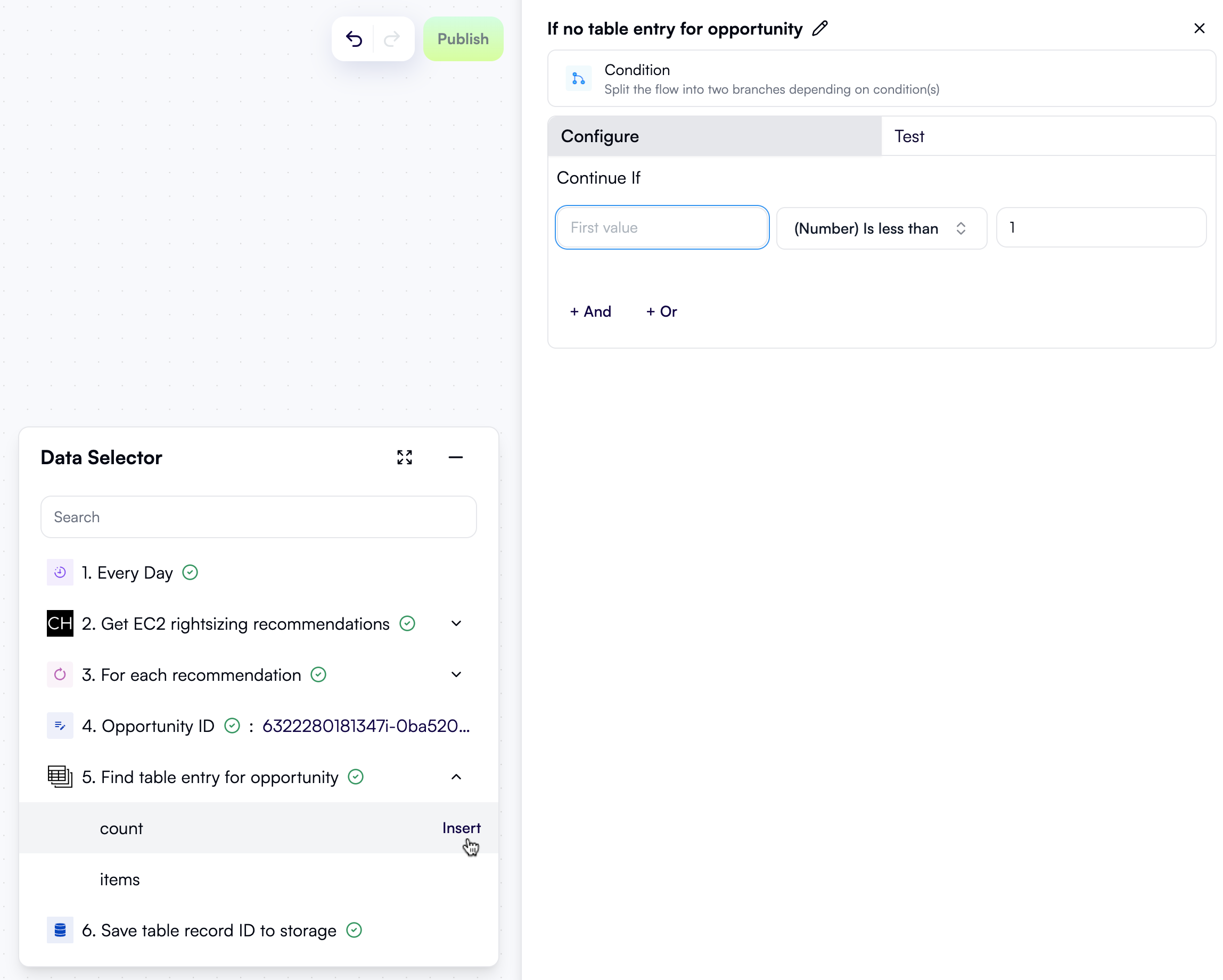
Every condition contains one or two data fields. Clicking a data field opens the **Data Selector** view, allowing you to select output from any of your prior actions:
## Condition
The **Condition** action splits the workflow into exactly two branches. One is executed if one or multiple conditions that you specify are satisfied, and the other is executed otherwise.
Think of this as the equivalent of an `if` statement in programming.
If you choose the **Condition** action, the properties pane on the right lets you define the condition. By default, there's only one condition, but you can combine multiple conditions with logical conjunction (click **And**) or disjunction (click **Or**).
Every condition contains one or two data fields. Clicking a data field opens the **Data Selector** view, allowing you to select output from any of your prior actions:
 Alongside the data fields, there's a combo box that defines the specific operation for your condition. See [Operators](#operators) for details.
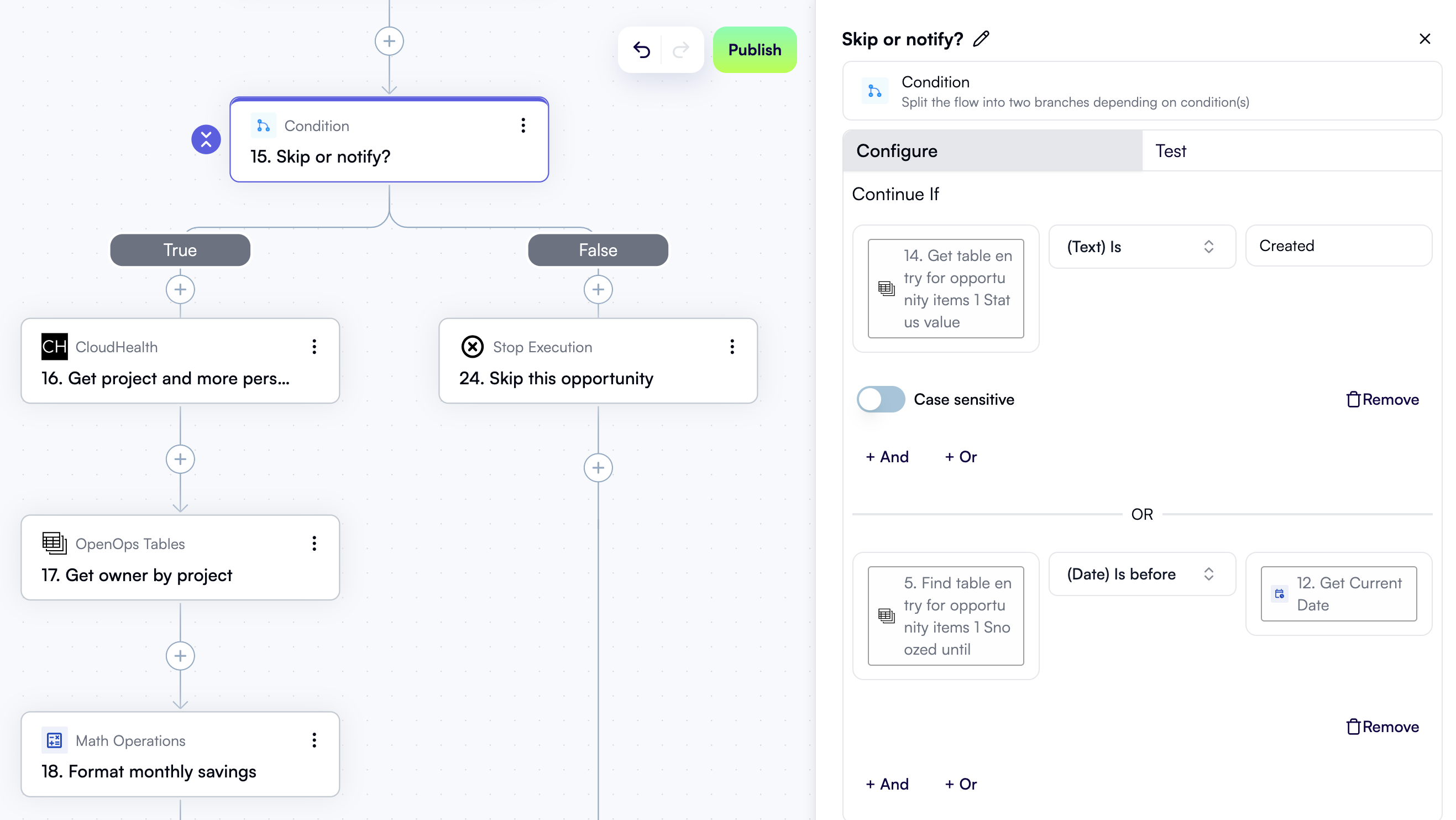
Here's an example of a complete condition that uses disjunction to check values returned from two separate prior steps:
Alongside the data fields, there's a combo box that defines the specific operation for your condition. See [Operators](#operators) for details.
Here's an example of a complete condition that uses disjunction to check values returned from two separate prior steps:
 If you click the **Test** tab in the condition step's properties pane, you can evaluate the condition and verify that the result matches your expectations.
## Split
The **Split** action splits the workflow into multiple branches. Each branch executes if its specific condition is met. An extra branch, called the default branch, executes if none of the conditions specified for other branches is satisfied. Every condition should be unique: if conditions in multiple branches are satisfied, this results in a workflow failure.
Think of this action as the equivalent of a `switch` statement in programming.
If you click the **Test** tab in the condition step's properties pane, you can evaluate the condition and verify that the result matches your expectations.
## Split
The **Split** action splits the workflow into multiple branches. Each branch executes if its specific condition is met. An extra branch, called the default branch, executes if none of the conditions specified for other branches is satisfied. Every condition should be unique: if conditions in multiple branches are satisfied, this results in a workflow failure.
Think of this action as the equivalent of a `switch` statement in programming.
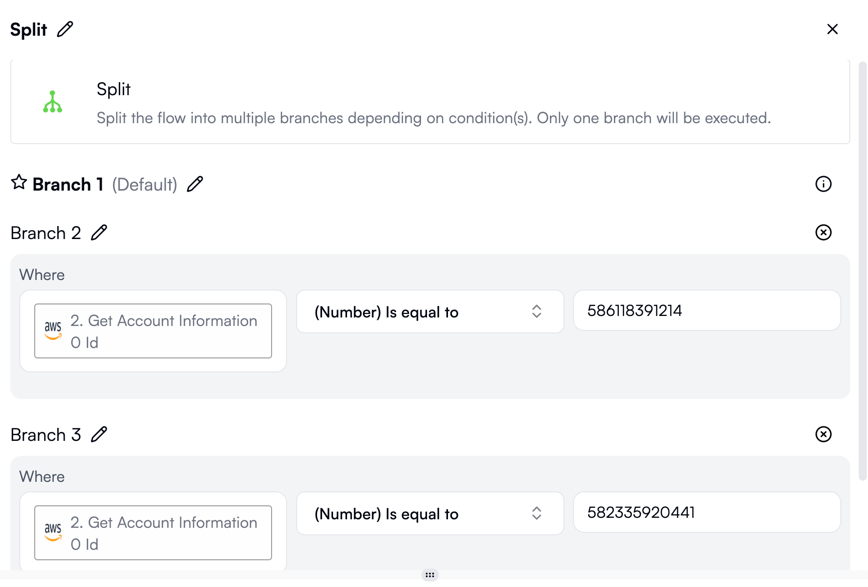 Each condition in the **Split** properties pane has one or more data fields and a combo box to define the [operator](#operators).
Unlike the **Condition** action, **Split** only allows one condition per branch, meaning you can't define complex conditions using **And** or **Or** operators.
## Operators
When you define conditions using the **Condition** or **Split** actions, you need to specify what operation to apply to the value(s) you supply. The combo box alongside the data fields lets you do just that:
Each condition in the **Split** properties pane has one or more data fields and a combo box to define the [operator](#operators).
Unlike the **Condition** action, **Split** only allows one condition per branch, meaning you can't define complex conditions using **And** or **Or** operators.
## Operators
When you define conditions using the **Condition** or **Split** actions, you need to specify what operation to apply to the value(s) you supply. The combo box alongside the data fields lets you do just that:
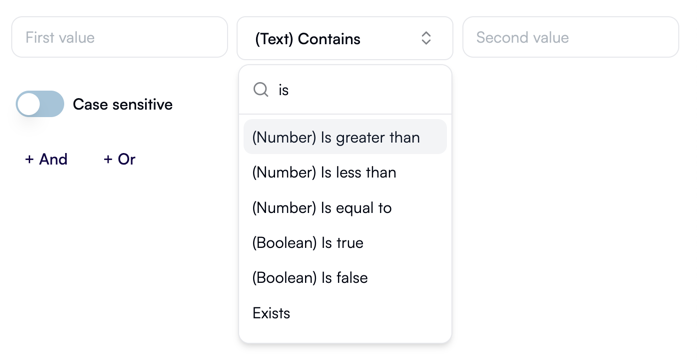 OpenOps provides 20+ operators applicable to several types of data: text (strings), numbers, boolean values, lists, and dates.
Here's the complete list of operators along with their additional settings:
| Data type | Operator |
| -------------- | ---------------------- |
| Text | Contains |
| Text | Does not contain |
| Text | Is |
| Text | Is not |
| Text | Starts with |
| Text | Does not start with |
| Text | Ends with |
| Text | Does not end with |
| Number | Is greater than |
| Number | Is less than |
| Number | Is equal to |
| Boolean | Is true |
| Boolean | Is false |
| All data types | Exists |
| All data types | Does not exist |
| List | Is empty |
| List | Is not empty |
| List | Length is greater than |
| List | Length is less than |
| List | Length is equal to |
| List | Contains |
| List | Does not contain |
| Date | Is before |
| Date | Is after |
All text operators provide a setting to toggle case sensitivity. All other operators come without additional settings.
## Exploring conditional branches in large workflows
If you're working with a large workflow that has many conditional branches and are having trouble navigating between them, consider collapsing steps you don't need to focus on right now, or use the **Tree view** pane.
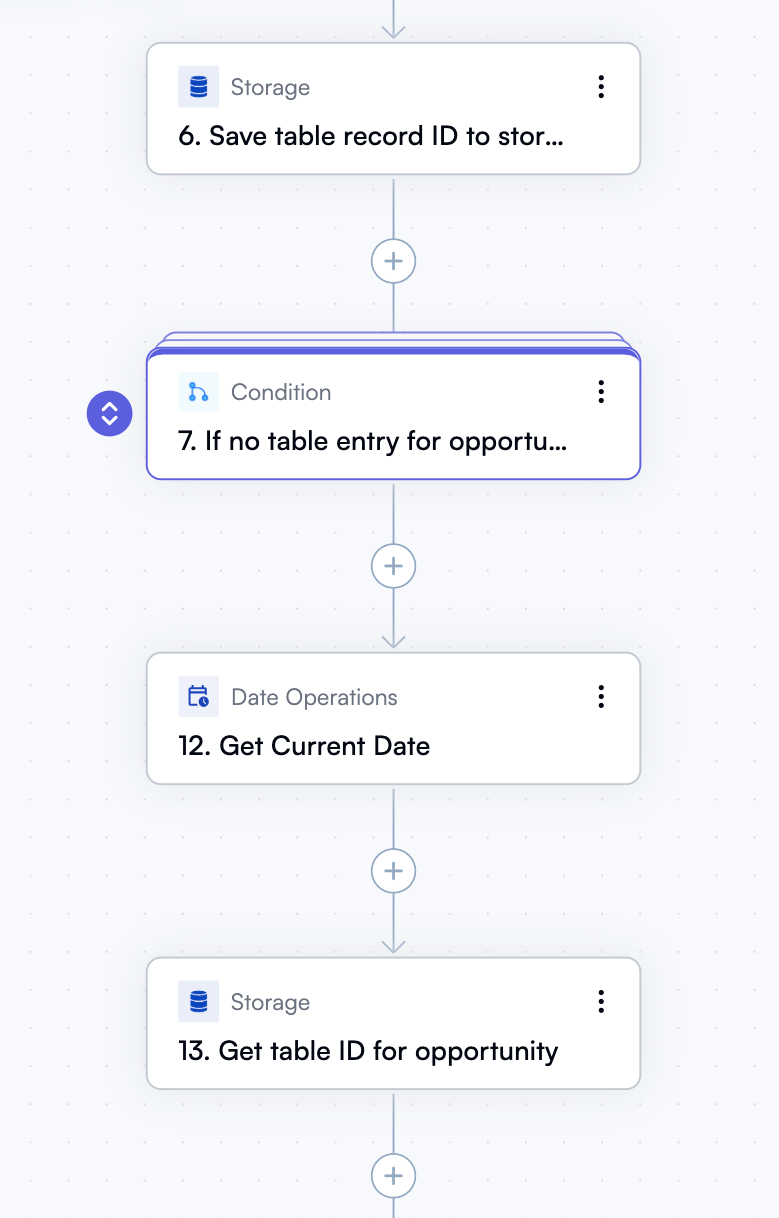
To collapse a condition, split, or loop step, click the collapse icon to the left of the node. A collapsed node can be expanded by clicking the icon again:
OpenOps provides 20+ operators applicable to several types of data: text (strings), numbers, boolean values, lists, and dates.
Here's the complete list of operators along with their additional settings:
| Data type | Operator |
| -------------- | ---------------------- |
| Text | Contains |
| Text | Does not contain |
| Text | Is |
| Text | Is not |
| Text | Starts with |
| Text | Does not start with |
| Text | Ends with |
| Text | Does not end with |
| Number | Is greater than |
| Number | Is less than |
| Number | Is equal to |
| Boolean | Is true |
| Boolean | Is false |
| All data types | Exists |
| All data types | Does not exist |
| List | Is empty |
| List | Is not empty |
| List | Length is greater than |
| List | Length is less than |
| List | Length is equal to |
| List | Contains |
| List | Does not contain |
| Date | Is before |
| Date | Is after |
All text operators provide a setting to toggle case sensitivity. All other operators come without additional settings.
## Exploring conditional branches in large workflows
If you're working with a large workflow that has many conditional branches and are having trouble navigating between them, consider collapsing steps you don't need to focus on right now, or use the **Tree view** pane.
To collapse a condition, split, or loop step, click the collapse icon to the left of the node. A collapsed node can be expanded by clicking the icon again:
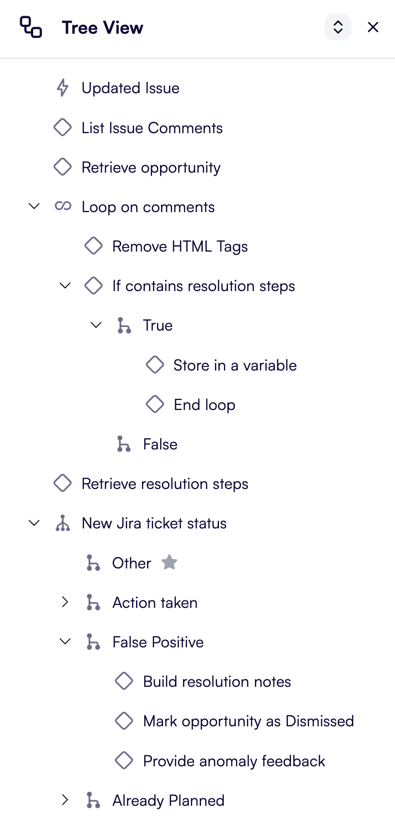
 Alternatively, for a bird's-eye view of the workflow, click **Tree view** in the top control pane of the workflow editor:
 This displays the **Tree view** pane on the left side of the editor — a great way to see a compact representation of your workflow, including conditions and branches: