> ## Documentation Index
> Fetch the complete documentation index at: https://openops-ecb4f397-mintlify-helm-chart-documentation-30057.mintlify.site/llms.txt
> Use this file to discover all available pages before exploring further.
# GCP Compute Engine Deployment
> How to deploy OpenOps on a GCP Compute Engine instance
export const target_0 = "VM"
This guide is for testing and evaluation purposes only and is not intended for production deployments. Please reach out to us at [support@openops.com](mailto:support@openops.com) if you'd like to learn how to set up OpenOps in a production environment.
This guide explains how to install the OpenOps Docker Compose release on a newly created GCP Compute Engine VM instance.
It assumes you have appropriate permissions on an existing Google Cloud Platform (GCP) project.
## Initial deployment
### Create a new VM instance
1. In the Google Cloud Console, navigate to **Compute Engine** → **VM instances**.
2. Click **Create Instance**.
3. Enter a name for your virtual machine.
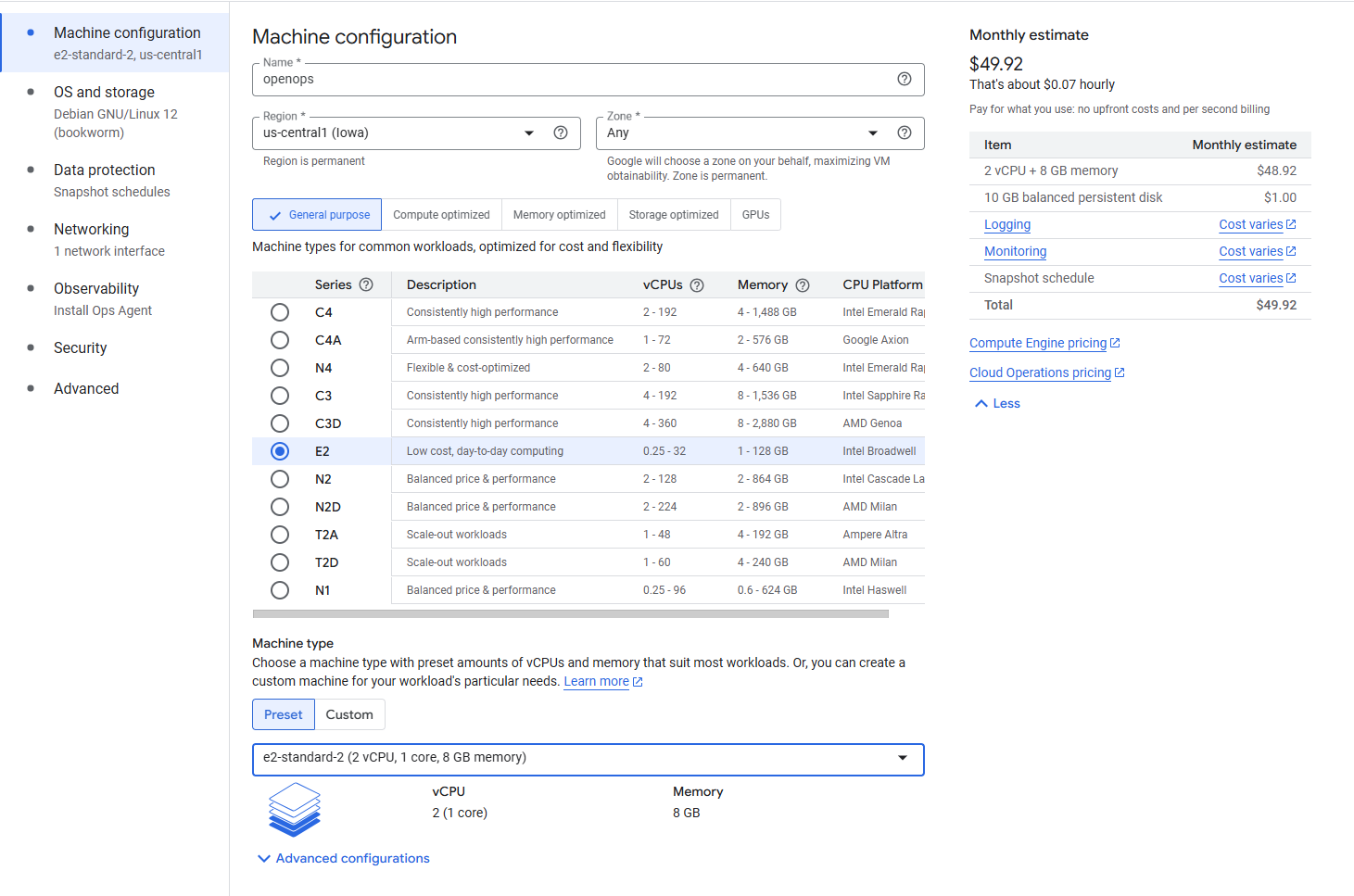
4. Under **Machine configuration**, configure the following:
* **Region and zone**: Choose a region and zone close to your users (e.g., `us-east1-b`).
* **Series**: Choose any recommended series (e.g., **E2**) or another family you prefer.
* **Machine type**: Choose a machine size similar to **e2-standard-2** or larger. Avoid very small machines, as OpenOps may need additional CPU/RAM for running Docker containers smoothly.
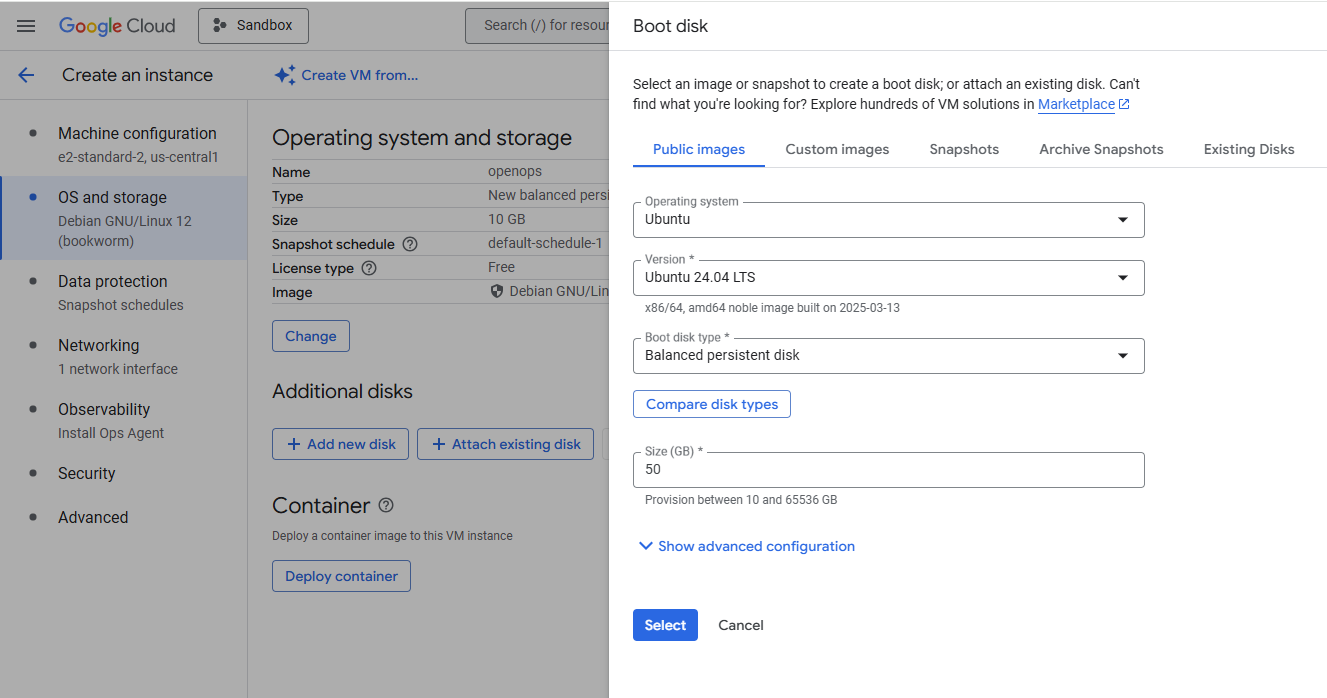
 5. Under **OS and storage**:
* Click **Change**.
* Select **Ubuntu** as the operating system (Ubuntu 24.04 LTS if available, or a close alternative).
* Increase the **Size** to at least 50GB to accommodate Docker images and databases.
* Click **Select**.
5. Under **OS and storage**:
* Click **Change**.
* Select **Ubuntu** as the operating system (Ubuntu 24.04 LTS if available, or a close alternative).
* Increase the **Size** to at least 50GB to accommodate Docker images and databases.
* Click **Select**.
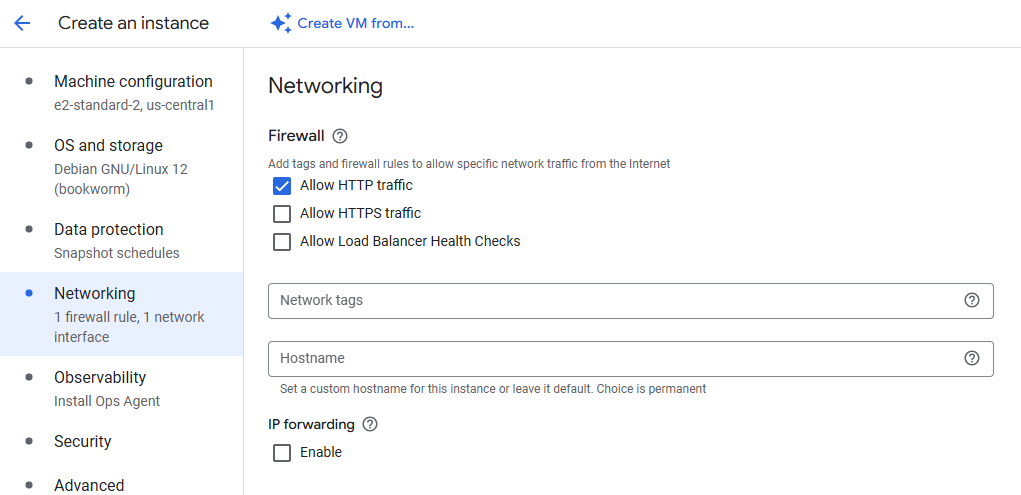
 6. Under **Networking**, check **Allow HTTP traffic**. This will automatically create a firewall rule to open port 80.
 7. Leave other settings as defaults (or adjust according to your preferences), then click **Create** to launch the VM.
### Configure firewall for SSH and HTTP
Depending on your project settings, a default firewall rule might already allow SSH access. By checking **Allow HTTP traffic** while creating the instance, HTTP (port 80) is also open. If you need to adjust or review these rules:
1. In the **VPC network** menu, go to **Firewall**.
2. Locate or create firewall rules for:
* **SSH** (TCP/22) from your IP or a limited source range.
* **HTTP** (TCP/80) for public access or your desired source range.
### Connect to the instance
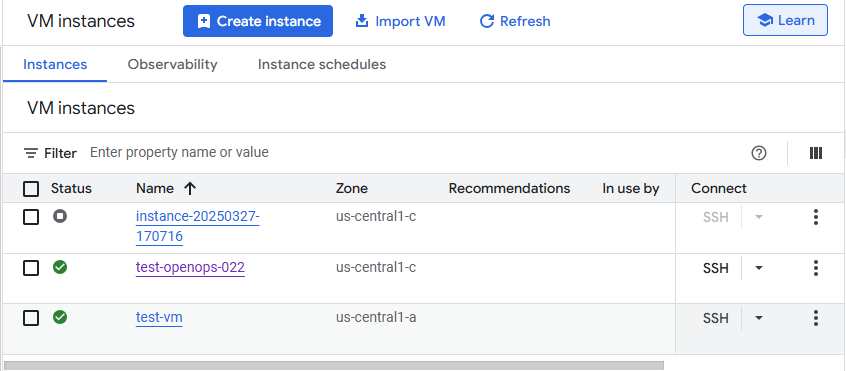
1. Once your VM is running, go to the **VM instances** list.
2. Click **SSH** next to your instance to open an in-browser terminal.
7. Leave other settings as defaults (or adjust according to your preferences), then click **Create** to launch the VM.
### Configure firewall for SSH and HTTP
Depending on your project settings, a default firewall rule might already allow SSH access. By checking **Allow HTTP traffic** while creating the instance, HTTP (port 80) is also open. If you need to adjust or review these rules:
1. In the **VPC network** menu, go to **Firewall**.
2. Locate or create firewall rules for:
* **SSH** (TCP/22) from your IP or a limited source range.
* **HTTP** (TCP/80) for public access or your desired source range.
### Connect to the instance
1. Once your VM is running, go to the **VM instances** list.
2. Click **SSH** next to your instance to open an in-browser terminal.
 ### Install OpenOps
Run the following command in your terminal to install, update, configure and run OpenOps:
```shell
curl -fsS https://openops.sh/install | sh
```
Alternatively, you can follow the manual installation steps:
1. Install the `unzip` utility:
```shell
sudo apt install unzip
```
2. In your SSH session, create a new directory and download the release files:
```shell
mkdir -p openops && cd openops
wget https://github.com/openops-cloud/openops/releases/download/0.5.2/openops-dc-0.5.2.zip
unzip -o openops-dc-0.5.2.zip
cp -u .env.defaults .env
```
3. Update the application URL to use the instance’s external IP address:
```shell
EXTERNAL_IP=$(curl -4 -s ifconfig.co)
sed -i "s|http://localhost|http://$EXTERNAL_IP|g" .env
```
4. Open the `.env` file in the OpenOps installation folder. Change the values of the following variables that represent credentials. Do it now, as you won't be able to change these values after the initial deployment:
* `OPS_OPENOPS_ADMIN_EMAIL`: the email of your OpenOps installation's root admin account.
* `OPS_OPENOPS_ADMIN_PASSWORD`: the password of your OpenOps installation's root admin account.
* `OPS_POSTGRES_USERNAME`: the username of the Postgres database that OpenOps uses.
* `OPS_POSTGRES_PASSWORD`: the password of the Postgres database that OpenOps uses.
* `OPS_ANALYTICS_ADMIN_PASSWORD`: the password of the [OpenOps Analytics](/reporting-analytics/data-visualization/) admin account (the username is hardcoded to `admin`).
5. Install Docker (for Ubuntu):
```shell
sudo apt-get update
sudo apt-get install -y docker.io
sudo systemctl enable docker
sudo systemctl start docker
```
6. Install Docker Compose (using `docker compose` plugin):
```shell
sudo mkdir -p /usr/local/lib/docker/cli-plugins/
sudo curl -SL https://github.com/docker/compose/releases/download/v2.24.6/docker-compose-linux-x86_64 -o /usr/local/lib/docker/cli-plugins/docker-compose
sudo chmod +x /usr/local/lib/docker/cli-plugins/docker-compose
```
7. Pull the images and start the Docker containers:
```shell
sudo COMPOSE_PARALLEL_LIMIT=4 docker compose pull -q && sudo docker compose up -d
```
If you encounter rate limits, rerun the pull command. Pulling images may take several minutes.
If you did not update credentials in the `.env` file, the default username is `admin@openops.com` and the password is `please-change-this-password-1`.
You can now access the OpenOps application by navigating to the external IP address of your VM (e.g., `http://`).
## External databases
To use external PostgreSQL or Redis databases, modify the relevant variables in the `.env` file. You can disable the corresponding containers by adding a profile in the `docker-compose.yml` file, for example:
```yaml
services:
postgres:
profiles: ["db"]
```
If you remove or disable the `db` profile in `.env` or in Docker Compose, that container won’t start.
After making any changes to the `.env` file, restart the OpenOps containers:
```shell
sudo docker compose down
sudo docker compose up -d
```
## Enabling TLS
For production usage, it’s recommended to enable TLS (HTTPS). In addition to the security aspect, this also ensures that [workflow templates](/workflow-management/workflow-templates/) load properly in all browsers.
The easiest way to enable TLS is to use an OpenOps script that requests and sets up a TLS certificate from Let's Encrypt. Before running the script, make sure you have a domain name that points to your {target_0}'s external IP address. If you're configuring DNS right before running the script, you may need to wait for the DNS change to propagate.
1. Run the following command in your terminal:
```shell
curl -fsS https://openops.sh/tls | sh
```
2. When prompted, enter a domain name that points to the external IP address of your {target_0}.
3. When prompted, enter an email address to receive certificate-related notifications from Let's Encrypt.
The script will use the Certbot library to request a certificate for your domain from Let's Encrypt. It receives and saves the certificate, updates the OpenOps configuration file accordingly, and restarts OpenOps.
By default, the certificate expires in 3 months. See [https://certbot.org/renewal-setup](https://certbot.org/renewal-setup) if you want to configure auto-renewal.
## Updating OpenOps to a newer version
See [Updating OpenOps](/getting-started/updating-openops).
## Support
Feel free to join our [Slack community](https://slack.openops.com) if you have any questions or need help with the installation.
### Install OpenOps
Run the following command in your terminal to install, update, configure and run OpenOps:
```shell
curl -fsS https://openops.sh/install | sh
```
Alternatively, you can follow the manual installation steps:
1. Install the `unzip` utility:
```shell
sudo apt install unzip
```
2. In your SSH session, create a new directory and download the release files:
```shell
mkdir -p openops && cd openops
wget https://github.com/openops-cloud/openops/releases/download/0.5.2/openops-dc-0.5.2.zip
unzip -o openops-dc-0.5.2.zip
cp -u .env.defaults .env
```
3. Update the application URL to use the instance’s external IP address:
```shell
EXTERNAL_IP=$(curl -4 -s ifconfig.co)
sed -i "s|http://localhost|http://$EXTERNAL_IP|g" .env
```
4. Open the `.env` file in the OpenOps installation folder. Change the values of the following variables that represent credentials. Do it now, as you won't be able to change these values after the initial deployment:
* `OPS_OPENOPS_ADMIN_EMAIL`: the email of your OpenOps installation's root admin account.
* `OPS_OPENOPS_ADMIN_PASSWORD`: the password of your OpenOps installation's root admin account.
* `OPS_POSTGRES_USERNAME`: the username of the Postgres database that OpenOps uses.
* `OPS_POSTGRES_PASSWORD`: the password of the Postgres database that OpenOps uses.
* `OPS_ANALYTICS_ADMIN_PASSWORD`: the password of the [OpenOps Analytics](/reporting-analytics/data-visualization/) admin account (the username is hardcoded to `admin`).
5. Install Docker (for Ubuntu):
```shell
sudo apt-get update
sudo apt-get install -y docker.io
sudo systemctl enable docker
sudo systemctl start docker
```
6. Install Docker Compose (using `docker compose` plugin):
```shell
sudo mkdir -p /usr/local/lib/docker/cli-plugins/
sudo curl -SL https://github.com/docker/compose/releases/download/v2.24.6/docker-compose-linux-x86_64 -o /usr/local/lib/docker/cli-plugins/docker-compose
sudo chmod +x /usr/local/lib/docker/cli-plugins/docker-compose
```
7. Pull the images and start the Docker containers:
```shell
sudo COMPOSE_PARALLEL_LIMIT=4 docker compose pull -q && sudo docker compose up -d
```
If you encounter rate limits, rerun the pull command. Pulling images may take several minutes.
If you did not update credentials in the `.env` file, the default username is `admin@openops.com` and the password is `please-change-this-password-1`.
You can now access the OpenOps application by navigating to the external IP address of your VM (e.g., `http://`).
## External databases
To use external PostgreSQL or Redis databases, modify the relevant variables in the `.env` file. You can disable the corresponding containers by adding a profile in the `docker-compose.yml` file, for example:
```yaml
services:
postgres:
profiles: ["db"]
```
If you remove or disable the `db` profile in `.env` or in Docker Compose, that container won’t start.
After making any changes to the `.env` file, restart the OpenOps containers:
```shell
sudo docker compose down
sudo docker compose up -d
```
## Enabling TLS
For production usage, it’s recommended to enable TLS (HTTPS). In addition to the security aspect, this also ensures that [workflow templates](/workflow-management/workflow-templates/) load properly in all browsers.
The easiest way to enable TLS is to use an OpenOps script that requests and sets up a TLS certificate from Let's Encrypt. Before running the script, make sure you have a domain name that points to your {target_0}'s external IP address. If you're configuring DNS right before running the script, you may need to wait for the DNS change to propagate.
1. Run the following command in your terminal:
```shell
curl -fsS https://openops.sh/tls | sh
```
2. When prompted, enter a domain name that points to the external IP address of your {target_0}.
3. When prompted, enter an email address to receive certificate-related notifications from Let's Encrypt.
The script will use the Certbot library to request a certificate for your domain from Let's Encrypt. It receives and saves the certificate, updates the OpenOps configuration file accordingly, and restarts OpenOps.
By default, the certificate expires in 3 months. See [https://certbot.org/renewal-setup](https://certbot.org/renewal-setup) if you want to configure auto-renewal.
## Updating OpenOps to a newer version
See [Updating OpenOps](/getting-started/updating-openops).
## Support
Feel free to join our [Slack community](https://slack.openops.com) if you have any questions or need help with the installation.