> ## Documentation Index
> Fetch the complete documentation index at: https://openops-ecb4f397-mintlify-helm-chart-documentation-30057.mintlify.site/llms.txt
> Use this file to discover all available pages before exploring further.
# Azure VM Deployment
> How to deploy OpenOps on Azure Virtual Machines
export const target_0 = "VM"
This guide is for testing and evaluation purposes only and is not intended for production deployments. Please reach out to us at [support@openops.com](mailto:support@openops.com) if you'd like to learn how to set up OpenOps in a production environment.
This guide explains how to install the OpenOps Docker Compose release on a newly created Azure VM.
You’ll need relevant permissions to create a new VM, edit its networking settings, and set up required permissions for Cloud Shell.
## Initial deployment
### Create a new virtual machine
1. Navigate to [Create a virtual machine](https://portal.azure.com/#create/Microsoft.VirtualMachine-ARM) in Azure.
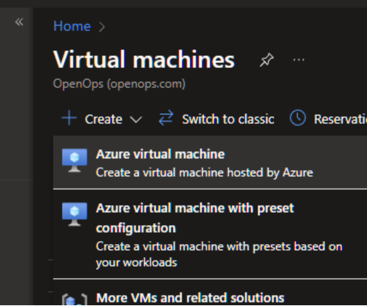 2. Name your machine and select the latest Ubuntu Server as the image. Choose a size with at least **2 CPUs and 8GB of RAM**. Other settings can be left as default.
 3. Click **Review + create** at the bottom, then **Create** to create the machine. You will be asked to download the private key.
You may see a warning about leaving port 22 (SSH) open. For production use, it’s recommended to open this port only to relevant IPs, depending on your network configuration. In this guide, we’re using CloudShell to connect to the machine, so the port needs to remain open.
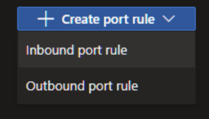
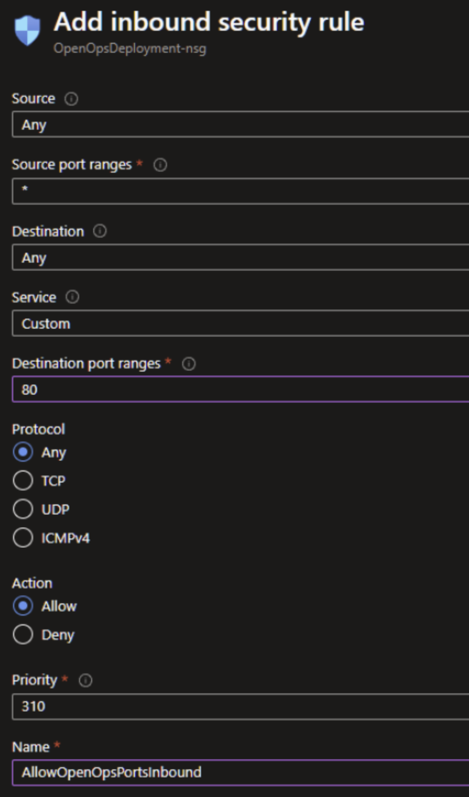
4. Once the machine is created, click **Go to resource**, then navigate to **Networking > Network settings** and **Create port rule > Inbound port rule** to set the required destination port to **80**. You can open the port to everyone, to your personal IP address only, or to a preferred range. Click **Add** to create the rule.
3. Click **Review + create** at the bottom, then **Create** to create the machine. You will be asked to download the private key.
You may see a warning about leaving port 22 (SSH) open. For production use, it’s recommended to open this port only to relevant IPs, depending on your network configuration. In this guide, we’re using CloudShell to connect to the machine, so the port needs to remain open.
4. Once the machine is created, click **Go to resource**, then navigate to **Networking > Network settings** and **Create port rule > Inbound port rule** to set the required destination port to **80**. You can open the port to everyone, to your personal IP address only, or to a preferred range. Click **Add** to create the rule.
 ### Connect to the virtual machine with Cloud Shell
1. Under **Overview**, select **Connect** and **SSH using Azure CLI** to open the Cloud Shell inside Azure Portal.
### Connect to the virtual machine with Cloud Shell
1. Under **Overview**, select **Connect** and **SSH using Azure CLI** to open the Cloud Shell inside Azure Portal.
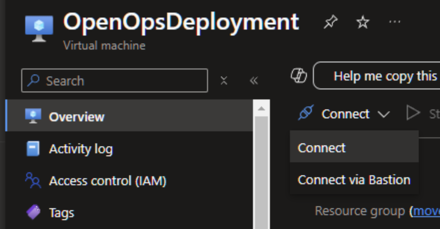
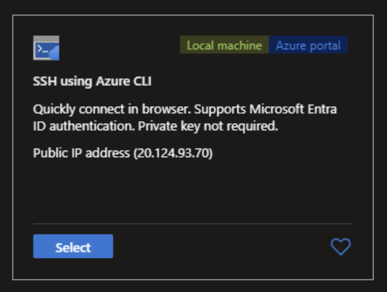
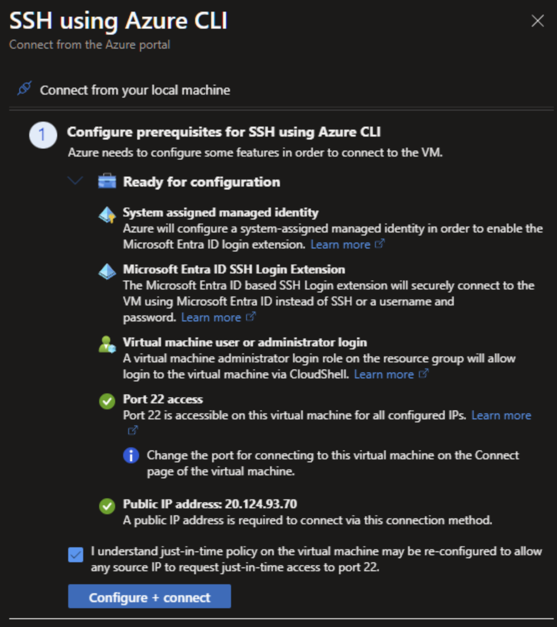 After a quick validation and setup, CloudShell should open and connect to the machine.
2. Ensure you're using the Bash shell by running the following command (you may need to paste it using a right-click instead of *Ctrl+V*):
```shell
[ -z "$BASH_VERSION" ] && exec bash
```
### Install OpenOps
Run the following command in your terminal to install, update, configure and run OpenOps:
```shell
curl -fsS https://openops.sh/install | sh
```
Alternatively, you can follow the manual installation steps:
1. Install the `unzip` utility:
```shell
sudo apt install unzip
```
2. Create a new directory and download the OpenOps release files:
```shell
mkdir -p openops && cd openops && \
wget https://github.com/openops-cloud/openops/releases/download/0.5.2/openops-dc-0.5.2.zip && \
unzip -o openops-dc-0.5.2.zip && cp -n .env.defaults .env
```
3. Edit the application URL to use the machine’s public IP address:
```shell
sed -i 's/http:\/\/localhost/http:\/\/'$(wget -4qO - https://ifconfig.io/ip)'/g' .env
```
4. Open the `.env` file in the OpenOps installation folder. Change the values of the following variables that represent credentials. Do it now, as you won't be able to change these values after the initial deployment:
* `OPS_OPENOPS_ADMIN_EMAIL`: the email of your OpenOps installation's root admin account.
* `OPS_OPENOPS_ADMIN_PASSWORD`: the password of your OpenOps installation's root admin account.
* `OPS_POSTGRES_USERNAME`: the username of the Postgres database that OpenOps uses.
* `OPS_POSTGRES_PASSWORD`: the password of the Postgres database that OpenOps uses.
* `OPS_ANALYTICS_ADMIN_PASSWORD`: the password of the [OpenOps Analytics](/reporting-analytics/data-visualization/) admin account (the username is hardcoded to `admin`).
5. Install Docker using Snap:
```shell
sudo snap install docker
```
6. Pull the images and run the Docker containers (rerun the pull command if you encounter a rate limit):
```shell
sudo COMPOSE_PARALLEL_LIMIT=4 docker compose pull && sudo docker compose up -d
```
If you did not update credentials in the `.env` file, the default username is `admin@openops.com` and the password is `please-change-this-password-1`.
You can now access the application by navigating to the public IP address of your virtual machine, for example, `http://20.20.20.20`.
## Getting credentials for Azure connections
See [this guide](https://docs.google.com/document/d/1WhwMk3he4d4vEv_7hIw7u_4ZIz_8ZewUS1yUKxpdYR0/edit?tab=t.0#heading=h.4lq77bkice4n).
## Enabling TLS
For production usage, it’s recommended to enable TLS (HTTPS). In addition to the security aspect, this also ensures that [workflow templates](/workflow-management/workflow-templates/) load properly in all browsers.
The easiest way to enable TLS is to use an OpenOps script that requests and sets up a TLS certificate from Let's Encrypt. Before running the script, make sure you have a domain name that points to your {target_0}'s external IP address. If you're configuring DNS right before running the script, you may need to wait for the DNS change to propagate.
1. Run the following command in your terminal:
```shell
curl -fsS https://openops.sh/tls | sh
```
2. When prompted, enter a domain name that points to the external IP address of your {target_0}.
3. When prompted, enter an email address to receive certificate-related notifications from Let's Encrypt.
The script will use the Certbot library to request a certificate for your domain from Let's Encrypt. It receives and saves the certificate, updates the OpenOps configuration file accordingly, and restarts OpenOps.
By default, the certificate expires in 3 months. See [https://certbot.org/renewal-setup](https://certbot.org/renewal-setup) if you want to configure auto-renewal.
## Updating OpenOps to a newer version
See [Updating OpenOps](/getting-started/updating-openops).
## Support
Feel free to join our [Slack community](https://slack.openops.com) if you have any questions or need help with the installation.
After a quick validation and setup, CloudShell should open and connect to the machine.
2. Ensure you're using the Bash shell by running the following command (you may need to paste it using a right-click instead of *Ctrl+V*):
```shell
[ -z "$BASH_VERSION" ] && exec bash
```
### Install OpenOps
Run the following command in your terminal to install, update, configure and run OpenOps:
```shell
curl -fsS https://openops.sh/install | sh
```
Alternatively, you can follow the manual installation steps:
1. Install the `unzip` utility:
```shell
sudo apt install unzip
```
2. Create a new directory and download the OpenOps release files:
```shell
mkdir -p openops && cd openops && \
wget https://github.com/openops-cloud/openops/releases/download/0.5.2/openops-dc-0.5.2.zip && \
unzip -o openops-dc-0.5.2.zip && cp -n .env.defaults .env
```
3. Edit the application URL to use the machine’s public IP address:
```shell
sed -i 's/http:\/\/localhost/http:\/\/'$(wget -4qO - https://ifconfig.io/ip)'/g' .env
```
4. Open the `.env` file in the OpenOps installation folder. Change the values of the following variables that represent credentials. Do it now, as you won't be able to change these values after the initial deployment:
* `OPS_OPENOPS_ADMIN_EMAIL`: the email of your OpenOps installation's root admin account.
* `OPS_OPENOPS_ADMIN_PASSWORD`: the password of your OpenOps installation's root admin account.
* `OPS_POSTGRES_USERNAME`: the username of the Postgres database that OpenOps uses.
* `OPS_POSTGRES_PASSWORD`: the password of the Postgres database that OpenOps uses.
* `OPS_ANALYTICS_ADMIN_PASSWORD`: the password of the [OpenOps Analytics](/reporting-analytics/data-visualization/) admin account (the username is hardcoded to `admin`).
5. Install Docker using Snap:
```shell
sudo snap install docker
```
6. Pull the images and run the Docker containers (rerun the pull command if you encounter a rate limit):
```shell
sudo COMPOSE_PARALLEL_LIMIT=4 docker compose pull && sudo docker compose up -d
```
If you did not update credentials in the `.env` file, the default username is `admin@openops.com` and the password is `please-change-this-password-1`.
You can now access the application by navigating to the public IP address of your virtual machine, for example, `http://20.20.20.20`.
## Getting credentials for Azure connections
See [this guide](https://docs.google.com/document/d/1WhwMk3he4d4vEv_7hIw7u_4ZIz_8ZewUS1yUKxpdYR0/edit?tab=t.0#heading=h.4lq77bkice4n).
## Enabling TLS
For production usage, it’s recommended to enable TLS (HTTPS). In addition to the security aspect, this also ensures that [workflow templates](/workflow-management/workflow-templates/) load properly in all browsers.
The easiest way to enable TLS is to use an OpenOps script that requests and sets up a TLS certificate from Let's Encrypt. Before running the script, make sure you have a domain name that points to your {target_0}'s external IP address. If you're configuring DNS right before running the script, you may need to wait for the DNS change to propagate.
1. Run the following command in your terminal:
```shell
curl -fsS https://openops.sh/tls | sh
```
2. When prompted, enter a domain name that points to the external IP address of your {target_0}.
3. When prompted, enter an email address to receive certificate-related notifications from Let's Encrypt.
The script will use the Certbot library to request a certificate for your domain from Let's Encrypt. It receives and saves the certificate, updates the OpenOps configuration file accordingly, and restarts OpenOps.
By default, the certificate expires in 3 months. See [https://certbot.org/renewal-setup](https://certbot.org/renewal-setup) if you want to configure auto-renewal.
## Updating OpenOps to a newer version
See [Updating OpenOps](/getting-started/updating-openops).
## Support
Feel free to join our [Slack community](https://slack.openops.com) if you have any questions or need help with the installation.