> ## Documentation Index
> Fetch the complete documentation index at: https://openops-ecb4f397-mintlify-helm-chart-documentation-30057.mintlify.site/llms.txt
> Use this file to discover all available pages before exploring further.
# LLM Connections
> How to integrate OpenOps with an LLM provider of your choice
Using [AI assistance](/ai-assistance/overview) in OpenOps requires a connection to a large language model (LLM) provider.
Every OpenOps instance can use one LLM connection at a time. It can be configured by any user and is shared among all users of the instance.
To configure an LLM connection for your instance:
1. In the OpenOps left sidebar, click the **Settings** icon at the bottom:
 2. In the **Settings** view, click **AI**. The **AI providers** section will open:
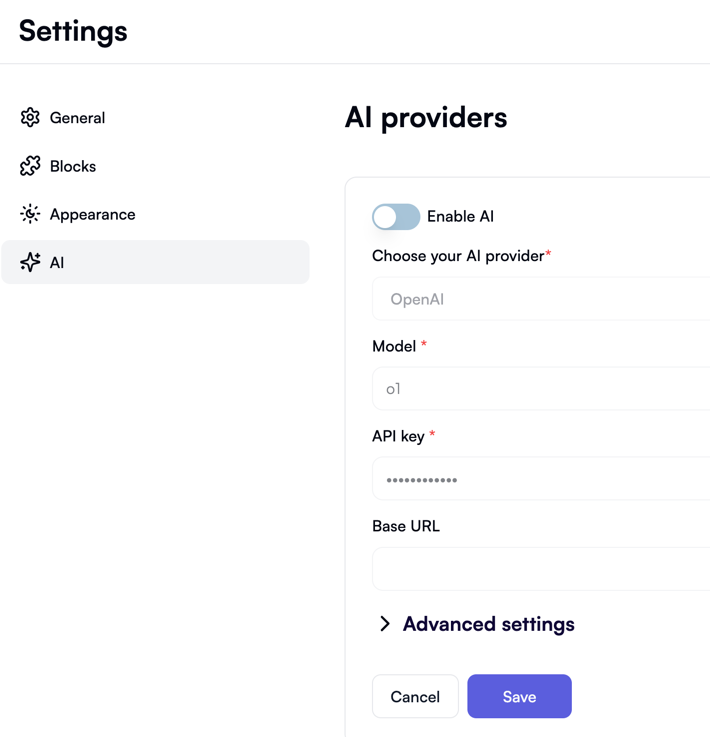 3. In the **AI providers** section, switch on the **Enable AI** toggle.
4. Under **Choose your AI provider**, select one of the supported LLM providers. Anthropic, Azure OpenAI, Cerebras, Cohere, Deep Infra, Deep Seek, Google Generative AI, Groq, Mistral, OpenAI, OpenAI Compatible, Perplexity, Together.ai, and xAI Grok are currently supported.
5. Under **Model**, select or enter one of the models that your LLM provider supports. The list of models is populated based on the LLM provider you selected in the previous step:
3. In the **AI providers** section, switch on the **Enable AI** toggle.
4. Under **Choose your AI provider**, select one of the supported LLM providers. Anthropic, Azure OpenAI, Cerebras, Cohere, Deep Infra, Deep Seek, Google Generative AI, Groq, Mistral, OpenAI, OpenAI Compatible, Perplexity, Together.ai, and xAI Grok are currently supported.
5. Under **Model**, select or enter one of the models that your LLM provider supports. The list of models is populated based on the LLM provider you selected in the previous step:
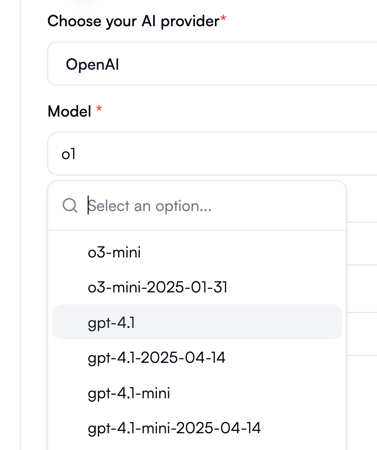 6. Enter your API key for the selected LLM provider in the **API Key** field.
7. (Optional) Enter a **Base URL** for the selected model. This is useful if you want to use a proxy or if your LLM provider does not use the default base URL. If you have selected *OpenAI Compatible* as the provider, then you are required to enter the base URL.
8. (Optional) Expand the **Advanced settings** section and use the **Provider settings** and **Model settings** fields to specify custom parameters as JSON. The JSON schema will vary depending on the chosen provider and model. For example, if you've selected OpenAI, you can use **Provider settings** for JSON that you'd normally pass to the `createOpenAI` function, and **Model settings** for JSON that you'd normally pass to the `streamText` function. For more details, see the [OpenAI documentation](https://platform.openai.com/docs/api-reference).
9. (Optional) If you're working with AWS and you want the OpenOps AI chatbot to have access to the AWS Cost MCP server, click **AWS Cost** in the **MCP** section, and select an AWS connection to use for the MCP server.
6. Enter your API key for the selected LLM provider in the **API Key** field.
7. (Optional) Enter a **Base URL** for the selected model. This is useful if you want to use a proxy or if your LLM provider does not use the default base URL. If you have selected *OpenAI Compatible* as the provider, then you are required to enter the base URL.
8. (Optional) Expand the **Advanced settings** section and use the **Provider settings** and **Model settings** fields to specify custom parameters as JSON. The JSON schema will vary depending on the chosen provider and model. For example, if you've selected OpenAI, you can use **Provider settings** for JSON that you'd normally pass to the `createOpenAI` function, and **Model settings** for JSON that you'd normally pass to the `streamText` function. For more details, see the [OpenAI documentation](https://platform.openai.com/docs/api-reference).
9. (Optional) If you're working with AWS and you want the OpenOps AI chatbot to have access to the AWS Cost MCP server, click **AWS Cost** in the **MCP** section, and select an AWS connection to use for the MCP server.
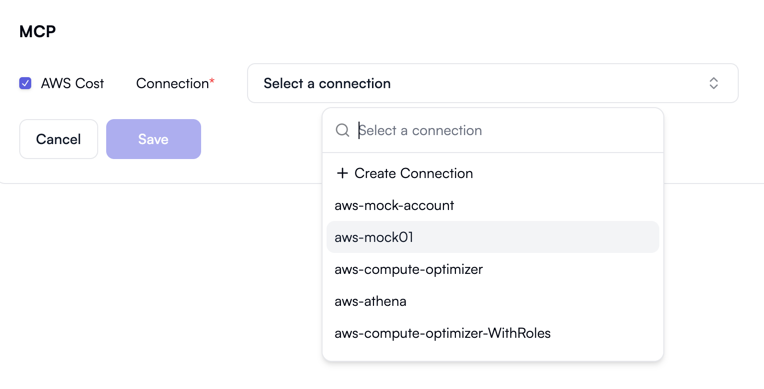 10. Click **Save** to apply your changes.
Configuring an LLM connection enables all [AI assistance features](/ai-assistance/overview) in OpenOps.
10. Click **Save** to apply your changes.
Configuring an LLM connection enables all [AI assistance features](/ai-assistance/overview) in OpenOps.